On this page
The Brother PT-P700 needs two separate downloads to work properly on Windows: the printer driver and the P-touch Editor label design software, both free from Brother’s own support site. This guide covers both installs plus the fixes for the most common PT-P700 issues, like the printer not being detected or labels printing with the wrong margins.
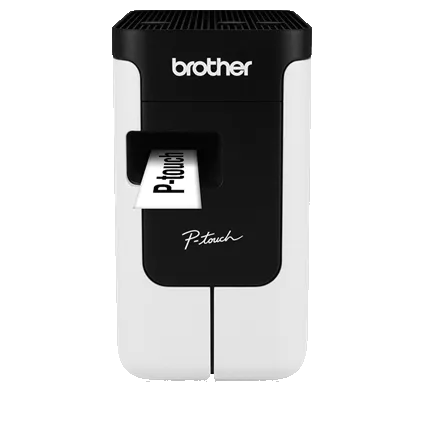
I set one of these up recently to label a client’s server room cabling, and the printer itself works well straight out of the box — the only snag was Windows briefly installing a generic driver first, which produced labels with the text cut off at the edges until I replaced it with Brother’s own driver.
Download the Driver and Software
Go to Brother’s official PT-P700 downloads page and select your Windows version. You will see two separate packages:
- Printer Driver — required for Windows to recognize the PT-P700 as a printer at all
- P-touch Editor — the label design application; without it you cannot lay out text, barcodes, or graphics on the tape
- Printer Setting Tool (optional) — lets you adjust auto power-off timing and default label settings from the PC
Download all three if you plan to use the printer regularly. The Printer Setting Tool is small and worth grabbing even though it is optional, since the PT-P700’s default auto power-off (10 minutes) can be annoying during a long labeling session.
Install and Connect
- Run the driver installer before plugging in the printer — Brother’s installer expects this order and will prompt you to connect the USB cable partway through
- Connect the PT-P700 via USB when prompted and wait for Windows to finish detecting it
- Install P-touch Editor separately, then open it once to confirm it detects the printer under File > Print Setup
- Load a tape cassette and print a short test label to confirm the driver and cutter are both working correctly
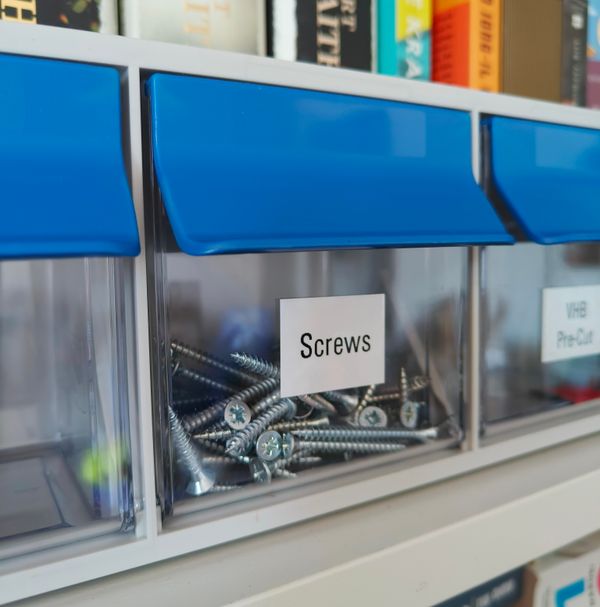
Using P-touch Editor Effectively
P-touch Editor has more depth than most people expect from a label maker app. A few features worth knowing about:
- Auto-format templates for cable wraps, file folders, and asset tags, so you are not designing from a blank canvas each time
- Database/mail-merge import from a CSV file, useful for printing dozens of unique asset labels in one batch
- Barcode generation built in, supporting Code 39, Code 128, and QR codes directly on the label
For anyone labeling more than a handful of items, the CSV import alone saves a lot of manual retyping compared to designing each label individually.
Common Fixes for the PT-P700
Printer not detected after installing the driver
Open Device Manager and check under “Printers” or “Other devices” for a yellow warning icon. If present, right-click it, choose “Update driver,” then “Browse my computer for drivers,” and point it at the folder where you extracted the Brother driver package rather than letting Windows search automatically.
Labels print with text cut off at the edges
This means the wrong tape width is selected in the driver’s print settings. Open the printer’s Properties in Windows, go to Printing Preferences, and match the “Media” or “Tape Width” dropdown to the cassette actually loaded in the printer.
Manual install path when the installer fails
On locked-down or older systems where the Brother installer errors out, extract the driver files manually and use Device Manager’s “Have Disk” option to point directly at the .inf file inside the extracted folder. This works even when the full installer package is blocked by group policy.
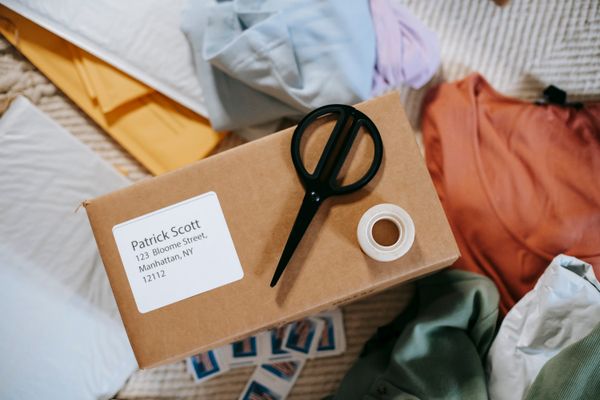
Per Grace T., who is an Office Manager at a small law firm, “We use the PT-P700 for every file folder and cable in the office — once the driver and P-touch Editor were both installed correctly, it has not given us a single problem since.”
PT-P700 vs PT-D600 — Which One Do You Need
A lot of people comparing label printers end up deciding between the PT-P700 and Brother’s higher-end PT-D600. Here is how they stack up for a typical home office or small IT setup:
| Spec | PT-P700 | PT-D600 |
|---|---|---|
| Display | None (PC only) | Full-color LCD, standalone use |
| Connectivity | USB only | USB, plus PC-free operation |
| Barcode/QR support | Via P-touch Editor on PC | Built-in, no PC needed |
| Best for | Occasional PC-connected labeling | Frequent standalone labeling |
| Typical price tier | Budget/mid-range | Higher-end |
If most of your labeling happens at a desk with a computer nearby, the PT-P700 covers everything you need for less money. The PT-D600 only makes sense if you regularly print labels away from a PC.
Asset Specifics
- Driver package size: roughly 15–25 MB; P-touch Editor adds another 150–250 MB
- OS compatibility: Windows 10 and Windows 11, 32-bit and 64-bit, plus macOS
- Connectivity: USB only — the PT-P700 has no built-in Wi-Fi or Bluetooth
- Tape width supported: 0.14 to 0.94 inches (3.5mm to 24mm) TZe tape cassettes
Frequently Asked Questions
Do I need P-touch Editor, or does the driver alone let me print?
You need both. The driver only lets Windows send print jobs to the device; P-touch Editor is what you use to actually design the label layout.
Why does my PT-P700 keep cutting labels in the wrong place?
Check the label length setting in P-touch Editor’s print dialog — a mismatch between the designed label length and the cutter’s auto-cut setting causes this. Setting a fixed label length usually fixes it.
Can I print PT-P700 labels from a Mac?
Yes, Brother provides matching macOS driver and P-touch Editor packages on the same downloads page linked above.
Does the PT-P700 work without a computer connected?
No, the PT-P700 has no standalone keyboard or display — it must stay connected to a PC or Mac running P-touch Editor to print anything.
Conclusion
Getting the PT-P700 running reliably comes down to installing both the driver and P-touch Editor in the right order, and matching the tape width setting to whatever cassette is actually loaded. Once that is sorted, this little printer handles everything from cable labels to barcode asset tags without much fuss. Keep the Printer Setting Tool installed too, since adjusting the auto power-off timer makes long labeling sessions noticeably less annoying.
Ryan
Self-taught driver/hardware specialist · 15 years experience