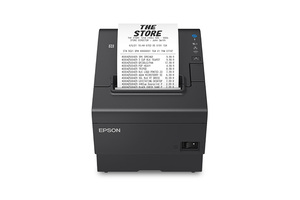
The Epson TM-T88VII driver you need depends on your point-of-sale software: most POS systems use the OPOS or JavaPOS driver, while a direct USB or Ethernet printer setup uses the Advanced Printer Driver (APD). Getting the right one the first time saves a lot of back-and-forth with your POS vendor’s support line.
Which driver do you actually need?
The TM-T88VII does not use a typical Windows print driver the way a home inkjet does. Instead:
- Advanced Printer Driver (APD): for a standard Windows printer queue you print receipts to, like from a browser-based POS
- OPOS/JavaPOS driver: for POS software (Square, Lightspeed, custom retail systems) that talks to the printer directly rather than through a print queue
- Epson TM Utility: for setting the IP address on Ethernet models and checking printer status
Check your POS software’s documentation first — it usually states outright which driver type it expects. Download from the official Epson TM-T88VII support page or the Epson Setup Navi tool, which walks through OS and connection type before showing the correct file.
Installing the Advanced Printer Driver on Windows
- Download and run the APD installer as Administrator
- Connect the printer via USB, or note its IP address if using Ethernet
- When prompted, choose the connection type and let the wizard detect the printer automatically
- Print a test receipt from the driver’s own Properties > General > Print Test Page
Setting a static IP for Ethernet models
I set up a TM-T88VII on a restaurant’s Ethernet network last year, and the biggest headache was the printer’s IP changing every time the router rebooted, which broke the POS connection each morning. Assigning a static IP through Epson TM Utility solved it permanently.
- Print a self-test page (hold the feed button while powering on) to see the printer’s current IP
- Open Epson TM Utility or TM-T88VII’s built-in web configuration page in a browser
- Switch from DHCP to a static IP address outside your router’s DHCP pool
- Update the IP in your POS software’s printer settings to match
Fixing an install that fails or a printer that will not respond
- Confirm the USB cable is a data cable, not charge-only — a surprisingly common cause of “device not detected”
- Check Device Manager for a yellow warning icon under “Ports (COM & LPT)” or “Printers”
- For Ethernet models, ping the printer’s IP from Command Prompt to confirm it is reachable on the network
- Reinstall the APD after fully removing the old driver through Printers & scanners and the Print Management console
Per Kevin O., who is a Retail IT Manager at a multi-location grocery chain on G2, “The TM-T88VII’s OPOS driver just works with our POS software once configured, and the print speed keeps checkout lines moving even during rush hour.”

Autocutter and paper feed issues
If receipts print but do not cut, or cut in the wrong place, the paper roll may be loaded backward — thermal paper only prints on one coated side. Reload with the coated side facing up toward the print head, and run a self-test to confirm alignment before blaming the driver.
Frequently Asked Questions
Does the TM-T88VII need a driver for every POS system? Most modern cloud POS platforms (Square, Clover, Toast) use their own built-in OPOS-compatible drivers, so check your provider’s hardware setup guide before installing Epson’s driver manually.
Can I connect the TM-T88VII over both USB and Ethernet at once? The printer supports multiple interfaces depending on the model configuration, but only one connection is typically active with your POS software at a time.
Why is my printer showing as offline in the OPOS driver? Check that the printer’s IP or COM port in the OPOS setup utility matches its actual connection, and confirm no other application has an exclusive lock on the port.
What is the difference between the TM-T88VI and TM-T88VII? The TM-T88VII prints faster and adds broader connectivity options, but both use similar APD and OPOS driver families from Epson.
Where can I find the printer’s IP address if I forgot it? Hold the feed button while powering the printer on to print a self-test page, which lists the current network settings.
Ethernet vs USB vs Bluetooth: Choosing a Connection
| Connection | Best for | Setup notes |
|---|---|---|
| USB | Single-register setups, simplest install | Plug and configure through APD, no network config needed |
| Ethernet | Multi-terminal stores sharing one printer | Needs a static IP to stay reliable after router reboots |
| Bluetooth (select models) | Mobile or pop-up checkout counters | Pairs like any Bluetooth device, but range is shorter than Wi-Fi |
For most single-counter shops, USB is the least troublesome option since there is no network configuration to maintain. Ethernet becomes worthwhile once you have two or more registers sharing a single printer, or when the POS software runs on a separate server.
Print Quality and Speed Troubleshooting
Faded or streaky receipts on a thermal printer almost never mean a driver problem, since there is no ink cartridge to run dry.
- Check the thermal paper is rated for the print head’s heat settings — cheap off-brand rolls fade faster
- Clean the print head gently with an isopropyl alcohol swab if text looks patchy across the width of the receipt
- In the APD or OPOS settings, confirm the print density/darkness setting has not been lowered accidentally
- Slow print speed under heavy load usually points to a USB 1.1 port or hub instead of USB 2.0/3.0 — connect directly to the motherboard’s USB port
Epson’s own TM-T88VII support page lists compatible thermal paper specifications if you are unsure whether a roll meets spec.
Conclusion
The TM-T88VII’s setup is straightforward once you know whether your POS software needs the Advanced Printer Driver or an OPOS/JavaPOS driver — that single decision solves most “printer not detected” complaints. Set a static IP on networked models early on to avoid daily reconnection issues at open.
Ryan
Computer Science grad · long-time hands-on troubleshooter