Getting the BIXOLON SRP-330II Working on Windows
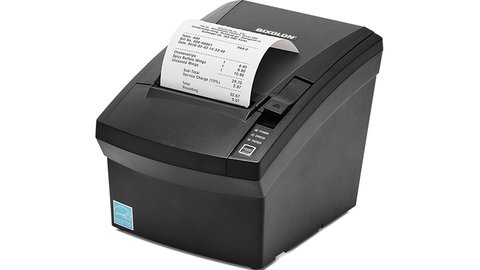
The BIXOLON SRP-330II driver download comes from the printer’s official support page on bixolon.com, where you need the Windows Driver package matched to your connection type — USB, serial, or Ethernet. This guide covers the download, setup in a POS system, and the offline/misprint issues that come up most with this thermal receipt printer.
| Field | Detail |
|---|---|
| Applies To | BIXOLON SRP-330II thermal receipt printer |
| Publisher | BIXOLON Co., Ltd. |
| Driver Type | Windows Driver (USB/Serial/Ethernet), OPOS, JavaPOS |
| File Size | Approximately 15–35 MB depending on driver package |
| OS Compatibility | Windows 10 and Windows 11, 32-bit and 64-bit |
Identify Your Connection Type
Check the back of the SRP-330II for the port style — USB-B, RS-232 serial, or RJ45 Ethernet — since the correct Windows driver package depends on this.
Download From BIXOLON
Go to the official SRP-330II downloads page, accept the terms, and download the Windows Driver matching your connection type.
Install and Connect
Run the installer as administrator, connect the printer via USB or your chosen interface, and power it on. Windows should list it as BIXOLON SRP-330II in Devices and Printers.
Set as Default and Test Print
Right-click the printer in Devices and Printers, set it as default if it is your primary receipt printer, and run a test print from the Print Server Properties to confirm the paper feed and cut work correctly.
Connecting the SRP-330II to POS Software
Most POS systems (Square, Shopify POS, custom retail software) talk to the SRP-330II through either the Windows driver directly or through an OPOS (OLE for Point of Sale) driver layer. If your POS software has a printer setup wizard, choose “Generic/Text Only” only as a last resort — picking the actual BIXOLON SRP-330II driver gives you correct paper cutting and cash drawer kick support.
- For OPOS-based POS software, install the separate OPOS driver package from BIXOLON’s downloads page, not just the plain Windows driver.
- For web-based POS systems, check if they need the printer set to ESC/POS emulation mode via the small DIP switches inside the paper compartment.
- If using a cash drawer connected through the printer’s RJ11 port, confirm the drawer kick command is enabled in the driver’s advanced settings.
Fixing Common SRP-330II Problems
I set up an SRP-330II for a small cafe’s checkout counter, and it kept showing a paper jam error even with a fresh roll loaded correctly. The paper sensor was dirty from thermal paper dust — a quick wipe with a dry cloth solved it immediately.
Printer Shows Offline or Not Responding
- Clear any stuck jobs from the Windows print queue and restart the Print Spooler service (search “services.msc”, find Print Spooler, right-click, Restart).
- Check the paper cover is fully latched — the SRP-330II has a safety sensor that reports offline if the cover is not clicked shut.
- Try a different USB cable, since damaged cables are a common cause of intermittent offline status on thermal printers.
Receipts Print Faded or Blank
This is almost always the thermal paper installed the wrong way round — thermal paper only prints on the coated side. Reload the roll with the coated (shiny/smooth) side facing up toward the print head, and check the print density setting inside the driver if text still looks light.
Paper Will Not Cut Cleanly
- Check the auto-cutter setting in the driver’s Device Settings tab is enabled (full cut vs. partial cut).
- Clean the cutter blade area with compressed air if paper dust has built up, since this is a common cause of ragged or incomplete cuts.
Per Priya N., who is a Retail Operations Manager on G2, “We have three SRP-330II printers running at our checkout counters, and once the driver was installed correctly, they have needed almost zero maintenance beyond swapping paper rolls.”
Manual Driver Installation Fallback
If the BIXOLON installer will not run on a locked-down POS terminal, extract the driver package with 7-Zip, open Device Manager, find the SRP-330II under Printers (or Universal Serial Bus controllers if unrecognized), right-click, choose Update Driver, then Browse my computer for drivers, and select the extracted folder containing the .inf file.
SRP-330II vs. Newer BIXOLON Models
BIXOLON has since released the SRP-330III as the direct successor, and it is worth knowing the differences if you are deciding whether to repair an existing SRP-330II or replace it.
| Spec | SRP-330II | SRP-330III |
|---|---|---|
| Print Speed | Up to 150mm/sec | Up to 180mm/sec |
| Connectivity | USB, Serial, Ethernet (model-dependent) | USB, Serial, Ethernet, Bluetooth options |
| Driver Support | Actively maintained through service end date | Latest driver branch, longer support window |
| Typical Use | Legacy POS terminals already in service | New POS deployments |
If your SRP-330II is already integrated into a working POS setup and prints reliably, there is rarely a need to upgrade just for driver reasons — BIXOLON continues shipping Windows driver updates for it.
Frequently Asked Questions
Is the BIXOLON SRP-330II still supported on Windows 11?
Yes, BIXOLON maintains active Windows 11 driver support even though the SRP-330II is an older, discontinued model still under service support.
Does the SRP-330II support Bluetooth or Wi-Fi?
The standard SRP-330II supports USB, serial, and Ethernet. Wireless connectivity depends on the specific interface card variant purchased.
What thermal paper size does it use?
The SRP-330II uses standard 80mm (3-inch) thermal receipt paper rolls, the same size used by most POS receipt printers.
Why does my SRP-330II print random characters?
This typically means the emulation mode (ESC/POS vs. a different command set) does not match what your POS software expects — check the DIP switch settings inside the paper compartment.
Where do I find the SRP-330II user manual?
BIXOLON provides the full manual on their official SRP-330II product page.
Conclusion
The BIXOLON SRP-330II is a reliable workhorse once the correct Windows driver matches your connection type and your POS software is pointed at it properly. Most problems — offline status, faded prints, jam errors — come down to paper orientation, a dirty sensor, or a stuck print queue rather than actual hardware failure. Keep the driver current and clean the paper sensor occasionally for trouble-free daily use.
Ryan is a self-taught driver and hardware specialist with 15 years of experience across printers, POS equipment, and general PC troubleshooting. He writes practical fix-it guides at softwaredriverdownload.com.