On this page
The Wacom One driver download is available free from Wacom’s official download page — just search your exact model (DTC133 for the pen display, or the older pen tablet version) and grab the Windows driver package. This guide covers the download, install, and the driver problems people run into most with the Wacom One line.
| Field | Detail |
|---|---|
| Applies To | Wacom One pen display (DTC133) and Wacom One pen tablet (CTL-472/CTL-672) |
| Publisher | Wacom |
| Driver Package | Wacom Desktop Center + Wacom Tablet Driver |
| File Size | Approximately 200–280 MB |
| OS Compatibility | Windows 10 and Windows 11, 64-bit |

Downloading and Installing the Wacom One Driver
- Go to the official Wacom driver download page and type “Wacom One” into the search box.
- Pick your exact model (pen display or pen tablet) since the driver files differ between them.
- Download the Windows driver installer and run it — it installs the Wacom Desktop Center, which manages the tablet settings.
- Restart your computer once installation finishes, even if it does not explicitly ask you to.
- Connect the Wacom One via USB-C (or the included USB adapter), then open Wacom Desktop Center to confirm the device is detected.
- Open Wacom Tablet Properties to map pen pressure, button functions, and screen area if you use the pen display model.
Setting Up Pen Pressure Sensitivity
Once installed, open the Wacom Tablet Properties app and go to the Pen tab. Drag the sensitivity slider toward Soft if your art program (Photoshop, Clip Studio Paint, Krita) is not registering light strokes, or toward Firm if lines feel too heavy. Test with the built-in pressure test bar before jumping into your actual drawing software.
Fixing Common Wacom One Driver Problems
I installed a Wacom One pen display for a freelance illustrator friend, and the screen showed a picture fine but the pen would not register any clicks at all. Turned out Windows had installed a generic HID driver over the Wacom driver during a routine update — a surprisingly common conflict.
- Pen not detected at all — open Device Manager, look under Human Interface Devices for a Wacom entry with a warning icon, right-click it, and choose Uninstall device, then reinstall the Wacom driver package fresh.
- Cursor lags behind the pen — this is usually a USB-C cable or port issue on the pen display model. Try the cable that shipped with the unit and a rear motherboard USB port rather than a front-panel hub.
- Display shows nothing but pen works — check that the video cable (HDMI or USB-C alt mode) is fully seated, and confirm Windows Display Settings has detected the Wacom One as a second monitor.
- Pressure sensitivity stopped working after a Windows update — reinstall the driver, since Windows updates occasionally reset tablet input settings back to mouse-emulation mode.
Manual Driver Installation (When the Installer Fails)
If the Wacom installer hangs or crashes, close it and extract the download using 7-Zip instead of running the setup executable directly. Then open Device Manager, find the Wacom One under Human Interface Devices, right-click, select Update Driver, choose Browse my computer for drivers, and point it at the extracted folder. This sidesteps installer bugs that sometimes affect managed work laptops with restricted permissions.
Per Sarah K., who is a Freelance Concept Artist on G2, “The Wacom One driver install was painless on my new laptop, and the pen pressure felt accurate right out of the box once I adjusted the sensitivity curve.”
Wacom One vs. Generic Third-Party Tablets
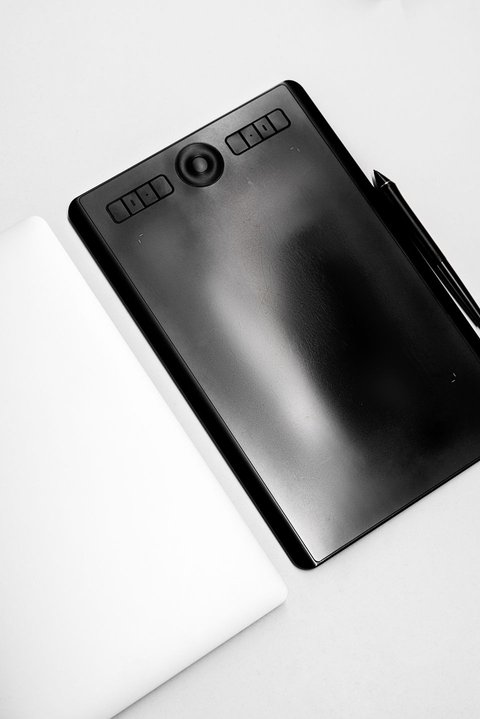
A lot of budget drawing tablets copy the Wacom One’s look, but the driver stack is what actually separates them in daily use. Wacom’s driver has been refined over decades and handles pen pressure curves, tilt sensitivity, and express key mapping more consistently across different art programs.
- Pen pressure levels: Wacom One supports 4096 levels versus 2048 or fewer on many budget alternatives.
- Driver update frequency: Wacom pushes driver updates for compatibility with new Windows builds faster than most third-party brands.
- Software compatibility: Wacom drivers are tested against Photoshop, Clip Studio Paint, Krita, and Illustrator specifically, reducing weird pressure curve bugs.
Value-Add: Getting More Out of the Wacom One Driver
Beyond just installing the driver, a few settings genuinely improve the drawing experience once everything is running:
- Open Wacom Desktop Center and check for driver updates monthly — Wacom ships small compatibility patches more often than the version number suggests.
- In Wacom Tablet Properties, map the express keys (if your model has them) to Ctrl+Z and Ctrl+Shift+Z for fast undo/redo while sketching.
- Set the screen area mapping to match your actual monitor resolution exactly, otherwise the cursor can feel slightly offset from where the pen touches.
- If you use multiple monitors, use Wacom Tablet Properties to restrict the Wacom One’s active area to just its own screen, so the pen does not accidentally control your main display.
Frequently Asked Questions
Is the Wacom One compatible with Windows 11?
Yes, Wacom actively supports Windows 11 for the entire Wacom One lineup through the standard driver download.
Do I need to install software, or does the pen just work?
Basic cursor movement may work without a driver, but pressure sensitivity and button mapping require the official Wacom driver installed first.
Can I use the Wacom One with a Chromebook?
Yes, and no driver installation is required on Chromebooks — just plug in the USB cable and it works.
Why is my Wacom One screen dim or flickering?
Check the USB-C cable connection first, then confirm your GPU driver is current, since display flicker on pen displays is often a graphics driver issue rather than a Wacom one.
Where do I download the latest Wacom driver manually?
Always use Wacom’s official support site rather than third-party driver download sites to avoid bundled adware.
Conclusion
Setting up the Wacom One is straightforward once you grab the correct driver for your exact model from Wacom’s own site. Most problems — pen not detected, pressure not registering, display not showing — trace back to either a driver conflict or a loose cable, so check those first before assuming the hardware failed. Keep the driver updated, especially after major Windows updates.
Ryan T. is a PC hardware enthusiast with 15+ years of experience fixing drivers on everything from printers to graphics tablets. He writes for softwaredriverdownload.com, sharing practical, tested fixes for everyday Windows hardware problems.