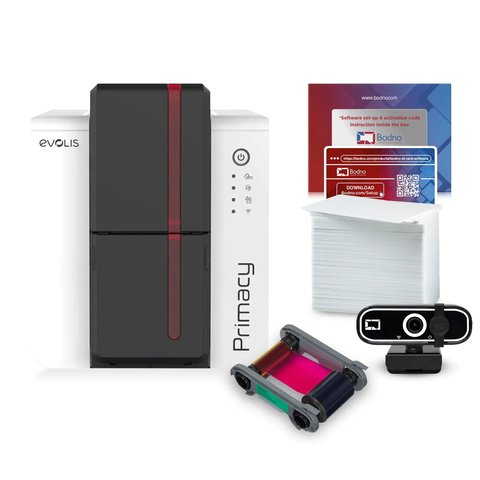
The Evolis Primacy 2 needs two separate downloads to work properly on Windows: the printer driver itself, and the Evolis Premium Suite management software that handles ribbon detection, card feeder settings, and encoding modules. Both come from the same official Evolis support portal, and installing them in the right order avoids most of the setup headaches people run into.
Quick Spec Reference
| Applies To | Evolis Primacy 2 ID card printer (simplex and duplex models) |
| Publisher | Evolis SA |
| Software | Evolis Premium Suite driver and print center |
| File Size | Roughly 80-120 MB for the full driver package |
| Connection | USB 2.0 (standard), optional Ethernet on network models |
| Requirements | Windows 10/11, 32-bit and 64-bit supported |
Download and Install the Driver
Go to the Evolis Primacy 2 support page on the MyEvolis portal, register or sign in, and select the driver matching your exact Windows build. Evolis packages the driver together with the Print Center utility that shows real-time printer status.
- Do not connect the USB cable yet – close the driver package first and run the installer as Administrator.
- Choose “Complete Installation” so both the driver and Print Center utility install together.
- When prompted, connect the Primacy 2 to a USB 2.0 port (avoid USB 3.0 hubs, which sometimes cause detection issues on this printer).
- Windows should install the device automatically once detected; wait for the “Ready” status in Print Center.
- Load a test card and ribbon, then print the built-in test pattern from Print Center’s diagnostics tab.
Setting Up Ribbon and Card Feeder Detection
Unlike a standard paper printer, the Primacy 2 driver needs to correctly identify the ribbon type (YMCKO color, monochrome, or holographic) before it will print reliably. Evolis ribbons carry an embedded chip that the printer reads automatically once the driver is installed – if Print Center shows “Unknown Ribbon,” reseat the ribbon cartridge fully and restart the printer.
I installed a Primacy 2 for a small school’s ID badge program last quarter, and the one gotcha was ribbon orientation – the chip reader is on one specific side of the cartridge, and inserting it backward makes Print Center report a phantom “ribbon error” that has nothing to do with the driver itself.
Fixing Failed Installs and Detection Issues
- Printer not detected after driver install – unplug the USB cable, restart the PC, then reconnect after Windows fully boots; the Primacy 2’s USB controller sometimes needs a cold restart to register.
- “Access denied” during installation – right-click the installer and choose “Run as administrator,” since Evolis Premium Suite needs elevated rights to register its print services.
- Print Center shows the printer as Offline – open Windows “Printers & scanners,” remove the Primacy 2 entry, and let Print Center re-add it automatically on next launch.
- Cards jam on feed – this is a hardware/tray issue, not a driver bug; check the card thickness setting in Print Center matches your actual card stock (typically 30 mil).
Manual Driver Install via Device Manager
If the full Evolis installer keeps failing, extract it with 7-Zip instead of running the .exe directly, open Device Manager, find the Primacy 2 under “Other devices,” right-click, choose Update driver, then browse to the extracted folder. This loads the base driver without the Print Center utility, which you can install separately afterward once the printer is recognized.
Per Thomas W., who is an IT Administrator at a mid-size university on G2, “The Evolis Premium Suite installer is straightforward as long as you install it before plugging in the printer – skipping that step caused us the only real headache.”
Frequently Asked Questions
Do I need Evolis Premium Suite, or just the driver?
The base driver alone lets Windows print to the Primacy 2, but Premium Suite adds ribbon monitoring, card count tracking, and diagnostics – most organizations install both.
Can the Primacy 2 driver work over a network instead of USB?
Yes, on models with the Ethernet option. Install the driver as a network printer using the Primacy 2’s assigned IP address instead of selecting USB during setup.
Why does my printed card have a faded or streaky finish?
This is almost always a ribbon or print head issue rather than a driver problem – check ribbon tension and run the built-in print head cleaning routine from Print Center.
Is there a Mac version of the Evolis driver?
Yes, Evolis publishes a separate macOS driver package on the same MyEvolis support page – select macOS from the operating system dropdown.
How do I know if I have the simplex or duplex model?
Check the label on the back of the printer, or open Print Center’s device info panel after installing the driver – it reports the exact model variant automatically.
What is the difference between the Primacy 2 and the original Primacy?
The Primacy 2 uses an updated print engine with faster throughput and a redesigned ribbon cartridge, but it shares the same Evolis Premium Suite driver family, so the install process is nearly identical between generations.

Card Types and Print Modes Supported
Once the driver and Print Center are installed, the Primacy 2 exposes several print modes depending on the ribbon loaded:
- Full color YMCKO printing for photo ID badges with a protective overlay
- Monochrome printing for high-volume black text or barcode cards
- Single-sided or dual-sided printing, depending on your Primacy 2 configuration
- Rewrite mode on compatible rewritable card stock, useful for temporary visitor badges
Print Center automatically detects which mode the loaded ribbon supports and greys out incompatible options in your card design software, which prevents accidentally sending a color job to a monochrome ribbon.
Conclusion
Installing the Evolis Premium Suite before connecting the Primacy 2, using a direct USB 2.0 port, and double-checking ribbon orientation solves the vast majority of setup problems people report. Once Print Center shows “Ready,” the printer is genuinely simple to keep running for ID card programs of any size.
Ryan, a Computer Science graduate and long-time hands-on troubleshooter, writes driver and setup guides for softwaredriverdownload.com, covering everything from consumer printers to business ID card systems.