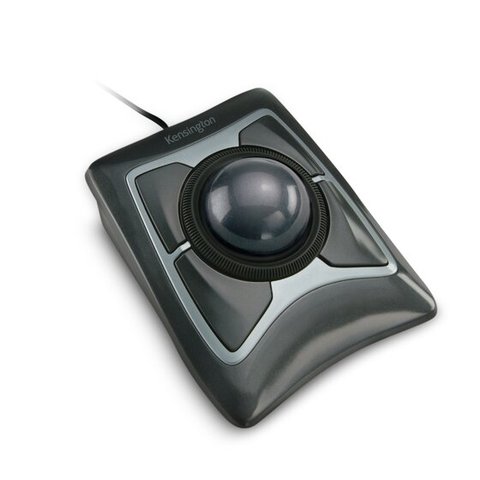
The Kensington Expert Mouse trackball works as a basic pointer without any driver, but you need to install KensingtonWorks to unlock scroll ring customization, button remapping, and per-application profiles. Here is how to download it, install it correctly, and fix the most common setup problems.
| Detail | Value |
|---|---|
| Applies To | Kensington Expert Mouse (wired and wireless trackball versions) |
| Author/Publisher | Kensington Computer Products Group (ACCO Brands) |
| Driver/Software | KensingtonWorks customization software |
| File Size | Roughly 60–80 MB |
| Requirements | Windows 10 and Windows 11, also macOS |
Download KensingtonWorks
Get the current installer from the Kensington software page. This single app handles driver-level features for the entire trackball and trackball-mouse lineup, including the Expert Mouse.
Connect the Trackball First
Plug in the USB cable (wired model) or pair via Bluetooth/USB receiver (wireless model) before running the installer so KensingtonWorks can detect it automatically during setup.
Run the Installer as Administrator
Right-click the downloaded file and choose “Run as administrator.” This avoids a common issue where the scroll ring driver component fails to register on standard user accounts.
Restart and Set Up Profiles
Restart your PC, then open KensingtonWorks to assign the four buttons and scroll ring to actions, and create per-application profiles for programs like Photoshop or a spreadsheet app.
I switched to an Expert Mouse for wrist pain a few years back, and the button remapping only clicked into place after I installed KensingtonWorks and rebooted — before that, all four buttons acted like a single left-click no matter what I set in the old legacy software. A full restart, not just a re-login, made the difference.
Troubleshooting Failed Installs
- Scroll ring does not scroll: Uninstall any old Kensington TrackballWorks software first — it conflicts with KensingtonWorks if both are present.
- Buttons revert to default after restart: Make sure KensingtonWorks is set to launch at startup in its settings tab, otherwise custom mappings only apply while the app is open.
- Trackball not detected over Bluetooth: Remove the device from Windows Bluetooth settings, then re-pair it from scratch rather than reconnecting to a stale pairing.
- Ball tracking feels jumpy: Remove the ball and clean the three support rollers inside the socket with a lint-free cloth — dust buildup here is extremely common and is not a driver issue at all.
Manual Install via Device Manager
Basic pointer function works with Windows’ built-in HID driver with no install needed. If KensingtonWorks itself will not install, extract the package manually, open Device Manager, locate the trackball under “Mice and other pointing devices,” and update the driver by browsing to the extracted folder.
Per Tomas H., who is a Graphic Designer at a marketing agency, “After years of wrist strain from a regular mouse, the Expert Mouse combined with KensingtonWorks profiles per app has been the single best ergonomic change I have made at my desk.”
Frequently Asked Questions
Do I need a driver for basic use?
No, Windows recognizes the Expert Mouse as a standard HID pointing device immediately. You only need KensingtonWorks for button remapping and scroll ring customization.
Is KensingtonWorks compatible with the older wired Expert Mouse?
Yes, KensingtonWorks supports both the wired and wireless Expert Mouse trackballs, replacing the older TrackballWorks software.
Can I use the Expert Mouse on two computers at once?
The wireless version supports Bluetooth multi-device pairing on some models, letting you switch between two paired computers, though profile settings are stored per computer, not shared.
Why is my scroll ring inverted?
Open KensingtonWorks, go to the scroll ring settings, and flip the direction toggle — this is a software setting, not a hardware fault.
Is the Expert Mouse compatible with left-handed use?
Yes, the trackball’s symmetrical design and four-button layout work equally well for left and right-handed users, and KensingtonWorks lets you swap primary and secondary button assignments to match your preference.
Does the driver work the same on Windows 10 and Windows 11?
Yes, KensingtonWorks uses the same installer and feature set on both versions. The only difference is where the Bluetooth pairing menu lives in Windows settings, since Windows 11 reorganized the Devices page.
Cleaning and Long-Term Maintenance
Because the Expert Mouse relies on a physical ball rather than an optical sensor on the desk surface, a bit of routine maintenance keeps tracking smooth long after the driver install is done:
- Twist the retaining ring counter-clockwise and lift the ball out.
- Wipe the ball with a lint-free cloth and mild soap if needed, then dry fully before reinserting.
- Use a cotton swab to clean the three small rollers inside the socket where dust collects the most.
- Reinsert the ball and twist the ring back until it clicks into place.
Doing this every few months prevents the jumpy or sticky tracking that people often mistake for a driver problem, when it is really just dust buildup on the rollers.
Why a Trackball Over a Regular Mouse
A few reasons people switch to the Expert Mouse specifically, beyond general trackball benefits:
- The large 55mm ball allows fine cursor control without moving your whole hand or wrist.
- The scroll ring around the ball gives a dedicated scroll control separate from clicking, which many regular mice cannot match precisely.
- Because the device itself never needs to move, it works well on a cluttered desk or a small keyboard tray with no room for regular mouse movement.
None of these ergonomic benefits depend on the driver being installed — they come from the hardware design itself. KensingtonWorks simply lets you get more precise control over how the buttons and scroll ring behave once you are already comfortable with the trackball motion.
Conclusion
The Kensington Expert Mouse works out of the box, but installing KensingtonWorks and giving your PC a full restart afterward is what unlocks its actual customization features. If buttons or scroll behavior seem stuck, check for an old TrackballWorks install still lingering in the background before assuming the hardware is at fault.
Ryan
Self-taught driver/hardware specialist · 15 years experience
Ryan is a self-taught driver and hardware specialist with 15 years of experience helping everyday users get their devices working correctly. He is the author behind softwaredriverdownload.com, where he helps everyday users fix driver and setup issues quickly and accurately.