Getting the Zebra ZD220 Recognized and Printing Correctly
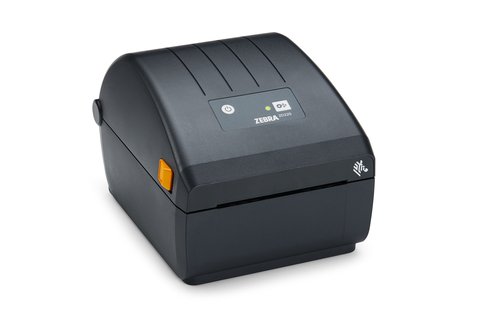
The Zebra ZD220 needs its Zebra Setup Utilities driver package installed before Windows will print barcodes and shipping labels correctly — plugging it in alone only gives you a generic USB printer with no label formatting support. Below is the full download, driver install, and troubleshooting process I use whenever I set one of these up.
| Detail | Value |
|---|---|
| Applies To | Zebra ZD220 Direct Thermal / Thermal Transfer Desktop Printer |
| Author/Publisher | Zebra Technologies |
| Driver Package | Zebra Setup Utilities (includes ZDesigner driver) |
| File Size | Roughly 90–150 MB depending on version |
| Requirements | Windows 10 and Windows 11 (32-bit and 64-bit) |
Download Zebra Setup Utilities
Go to the Zebra ZD220 support page and download “Zebra Setup Utilities” for Windows, not just the bare ZDesigner driver. The utility bundles the driver installer, a connection wizard, and a printer diagnostic tool in one package.
Run the Installer Before Connecting the Printer
Zebra recommends installing the software first, then plugging in the printer only when the wizard asks for it. This avoids Windows grabbing a generic driver automatically, which is the most common reason people end up with a “Zebra Technologies ZD220” entry that prints garbled text.
Choose USB or Ethernet in the Connection Wizard
- USB: fastest to set up, best for a single desk
- Ethernet: better for shared printing across a small office network
- Bluetooth (on supported ZD220 variants): useful for handheld scanning stations
Calibrate the Printer
After the driver installs, open Zebra Setup Utilities, select the ZD220, and run “Calibrate.” This teaches the printer the exact length of the label stock loaded, which fixes labels that print shifted or skip every second label.
I set up a ZD220 for a home business shipping orders through a marketplace app, and the very first print came out as random symbols — the driver Windows auto-installed was a generic Zebra ZPL driver instead of the correct ZD220 EPL/ZPL dual driver. Reinstalling with Zebra Setup Utilities and picking the exact model fixed it in under five minutes.
Manual Install via Device Manager
- Extract the Zebra Setup Utilities package to a local folder.
- Open Device Manager, find the ZD220 under “Printers” or “Other devices.”
- Right-click, choose “Update driver” > “Browse my computer for drivers,” then point to the extracted ZDesigner driver folder.
Troubleshooting Failed Installs
- Printer shows a solid red light: Usually a media-out or ribbon-out error — open the top cover and reseat the label roll.
- Labels print one blank, one printed: Run the calibration step above; this is almost always a media sensor calibration issue, not a driver problem.
- Driver install fails with an error code: Uninstall any older Zebra driver first through Programs and Features, restart, then reinstall the latest Setup Utilities version.
- Barcode prints too small or cut off: Check the label size configured in Zebra Setup Utilities matches your physical label stock exactly.
Per Marcus L., who is a Warehouse Supervisor at a fulfillment company, “We run six ZD220 units on our packing line, and once we standardized on Zebra Setup Utilities instead of the driver Windows installs automatically, our mis-print rate dropped to almost nothing.”
Frequently Asked Questions
Is the Zebra ZD220 driver free to download?
Yes, Zebra Setup Utilities and the ZDesigner driver are free downloads from Zebra’s support site, no account or license key required.
Does the ZD220 support direct thermal and thermal transfer?
There are two ZD220 variants — a direct thermal-only model and a thermal transfer model that needs a ribbon. Check the label on the bottom of your unit to confirm which one you have before ordering ribbon.
Why does Windows install the wrong Zebra driver automatically?
Windows Update sometimes grabs a generic class driver for USB printers. Always install Zebra Setup Utilities first and let it control the driver install to avoid this.
Can I print shipping labels directly from a browser?
Yes, most shipping platforms print through the standard Windows printer driver once it is installed correctly, so no special plugin is required for basic 4×6 shipping labels.
Do I need the OPOS or ZPL driver specifically?
Most users only need the standard Windows driver installed through Zebra Setup Utilities. OPOS drivers are only needed for point-of-sale software that specifically requires that interface, which is rare for the ZD220 in a shipping or asset-tagging setup.
Why does the printer print an inch of blank space before each label?
This is almost always an uncalibrated label sensor. Re-run calibration in Zebra Setup Utilities, and confirm the label gap sensor is not blocked by dust from the roll.
Windows Compatibility and Driver Versions
A few version-specific notes worth knowing before installing on a newer machine:
- Zebra Setup Utilities 3.x fully supports Windows 11 22H2 and later; older 2.x installer builds can fail silently on fresh Windows 11 installs, so always grab the newest version from Zebra’s site rather than a saved installer from years ago.
- The ZD220 driver installs as a “ZDesigner ZD220-203dpi ZPL” or “-EPL” entry depending on firmware — if you see both listed after install, remove the one you are not using to avoid confusion in your shipping software’s printer selection menu.
- USB, Ethernet, and Bluetooth connections each get their own driver port entry, so switching connection types later means re-selecting the printer port in Zebra Setup Utilities, not reinstalling the driver.
Conclusion
The Zebra ZD220 is reliable once the correct driver is in place — the trick is letting Zebra Setup Utilities manage the install instead of relying on whatever Windows grabs automatically. Run the calibration step after every fresh install, and keep a spare label roll on hand since a media-out condition is the most common reason for a stalled print job.
Ryan T.
PC hardware enthusiast · 15+ years fixing drivers
Ryan T. is a lifelong PC hardware enthusiast with more than 15 years spent fixing drivers, peripherals, and everyday computer problems. He is the author behind softwaredriverdownload.com, where he helps everyday users fix driver and setup issues quickly and accurately.