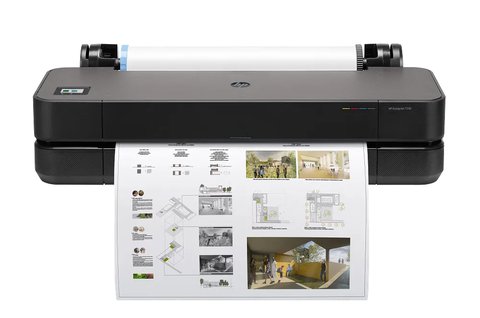
Follow each step below in order until your HP DesignJet T230 large format printer is detected and printing correctly — the driver is free from HP’s official support site, and most setup problems trace back to using the wrong package or skipping the network configuration step.
| Spec | Detail |
|---|---|
| Applies To | HP DesignJet T230 24-in Large Format Printer |
| Publisher | HP Inc. |
| Driver Package | HP DesignJet T200/T600 Series Driver and Software |
| File Size | Approximately 250 to 400 MB (PostScript/PDF driver adds size) |
| OS Compatibility | Windows 10 and Windows 11 (64-bit), macOS separately supported |
Download the correct driver (most common starting mistake)
Get the package from HP’s DesignJet T230 support page, matched exactly to your Windows build. Large-format printers commonly ship two driver types: a standard raster driver and a PostScript/PDF driver for CAD software — download both if you use programs like AutoCAD.
Connect the printer to your network first
Use the printer’s front panel to join your Wi-Fi network or plug in an Ethernet cable before running the Windows installer. HP’s setup tool searches the network for the printer, so it needs to already be online.
Run the installer and select network setup
Choose the wired or wireless network option rather than USB unless you specifically want a direct connection. The installer detects the printer by IP address, so make sure both devices are on the same subnet.
Load paper and calibrate
Run a color calibration and paper-advance calibration from the front panel after installing, especially if you plan to print architectural drawings where line accuracy matters.
Common DesignJet T230 Driver Issues
Printer Not Found on the Network
I set one of these up for an architecture office that had the printer on a VLAN separated from design workstations, and the installer simply could not find it no matter how many times we retried. Once IT moved it onto the same subnet as the CAD machines, detection worked immediately. If your office uses network segmentation, ask IT to confirm the printer and PC can reach each other.
Prints Come Out With Wrong Colors or Banding
- Run the built-in color calibration from the front panel (Image Quality Maintenance menu)
- Confirm you selected the correct paper type in the driver, since color profiles are paper-specific on this printer
- Check that print heads are not clogged by running a nozzle check from the maintenance menu
CAD Software Cannot See the Printer
Programs like AutoCAD and Revit sometimes need the PostScript/PDF driver rather than the standard raster driver to appear in their print dialog. Download the PS driver separately from the same support page if your CAD program does not list the DesignJet T230 as an available printer.
Per Owen K., who is a Design Technologist at an architecture firm, “The T230 is small enough to fit in a normal office, but the driver setup trips people up if you skip connecting it to the network first. Once we did that in the right order, it just worked.”
Why the Official Driver Beats the Windows-Detected One
Windows can sometimes detect the DesignJet T230 automatically and install a very basic class driver. That driver gets you printing, but it strips out several things large-format users actually need:
- Accurate paper-size handling for oversized rolls and custom cut sheets
- Access to the HP DesignJet utility for ink level monitoring and print head diagnostics
- Correct margin and scaling behavior when printing from CAD and GIS software
- Firmware update notifications, which matter more on plotters since firmware often fixes paper-jam and calibration bugs
If you only print the occasional PDF, the generic driver may be adequate. Anyone printing architectural drawings, blueprints, or posters regularly should install the full HP package instead.
Manual Driver Installation Fallback
If HP’s automatic installer will not complete, you can add the printer manually:
- Extract the downloaded driver package to a folder
- Open Settings > Bluetooth & devices > Printers & scanners > Add device
- Choose “The printer that I want isn’t listed,” then “Add a printer using a TCP/IP address or hostname”
- Enter the printer’s IP address (visible on its front panel under Network settings)
- When prompted for a driver, browse to the extracted folder and select the matching INF file

Frequently Asked Questions
Does the DesignJet T230 support Windows 11?
Yes, HP’s driver package on the support page is compatible with both Windows 10 and Windows 11 64-bit.
Do I need the PostScript driver for regular printing?
No, the standard raster driver is enough for most everyday printing. The PostScript/PDF driver is only needed for certain CAD and design applications that require it specifically.
Can I connect the T230 by USB instead of network?
Yes, USB works and is often simpler for a single-user setup, though network connection is recommended if multiple people in an office need to print to it.
Why do my prints look faded or streaky?
This usually points to a clogged print head. Run a nozzle check and cleaning cycle from the front panel maintenance menu before assuming the ink cartridges need replacement.
Is HP’s driver package different for each region?
The driver itself is the same globally, but HP’s support page may show different paper size defaults (A-series vs ANSI) depending on your selected country, so choose the correct region when downloading.
How often should I run color calibration?
Run it after installing a new print head or switching paper types, and roughly every few months under regular use. Studios doing color-critical print proofs may want to calibrate weekly.
Conclusion
Getting the DesignJet T230 driver working reliably comes down to connecting the printer to your network before running the installer and picking the right driver type for your software. If you hit detection problems, the manual TCP/IP method above is a solid fallback that works even when the automatic installer fails. Run calibration after setup so your first large-format prints come out accurate.
About the Author
Ryan holds a Computer Science degree and has spent 20+ years working hands-on with PC hardware, peripherals, and driver troubleshooting, including large-format and office print equipment. He writes and maintains softwaredriverdownload.com to help readers fix driver problems without guesswork.