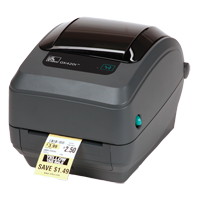
The Zebra GK420T is a widely used desktop thermal transfer printer for shipping labels and barcodes, and while Zebra has moved on to newer models, the GK420T is still running in plenty of small warehouses and shipping stations. Getting the ZebraDesigner driver installed correctly is the key step — without it, Windows will not print barcodes at the correct size or density.
I helped a small e-commerce seller get a used GK420T working again after a computer replacement, and the printer itself was fine — the issue was that Windows had installed a generic text-only driver instead of the proper ZebraDesigner driver, which made every barcode print stretched and unreadable by scanners.
Quick Spec Reference
| Field | Detail |
|---|---|
| Applies To | Zebra GK420T desktop thermal transfer printer |
| Publisher | Zebra Technologies |
| Driver Package | ZebraDesigner Windows Driver |
| Version | Latest version available from Zebra’s support downloads page |
| File Size | Approximately 40–60 MB |
| Requirements | Windows 11, Windows 10, Windows 8.1, Windows 7 (32/64-bit); USB, Serial, or Parallel connection |
Downloading the Zebra GK420T Driver
Even though Zebra no longer sells the GK420T as a new product, the driver remains available on their official support site under the legacy GK Series section.
- Go to the official Zebra GK420T support and downloads page.
- Select Drivers from the download category list.
- Download the ZebraDesigner Driver for Windows.
- Run the installer and select your connection type (USB is most common for this model).
- When prompted, plug in and power on the printer so Windows can detect it.
ZebraDesigner is Zebra’s own Windows printer driver and label design suite. It replaced the older individual driver installers and now covers most Zebra desktop printers, including the GK420T, through a single unified installer.
Manual Driver Install via Device Manager
- Download and extract the ZebraDesigner driver package rather than only running the setup wizard.
- Connect the GK420T over USB and power it on.
- Open Device Manager and look for the printer under “Other devices” or “Printers” with a warning icon.
- Right-click it, choose Update driver, then Browse my computer for drivers, and select the extracted folder.

Fixing Common Zebra GK420T Problems
Barcodes Print Blurry or Unreadable by Scanners
- Open the printer’s properties in Windows, go to the ZDesigner tab, and check that Darkness is set correctly for your label stock — too low and the print is faint, too high and it smears.
- Confirm the print speed matches what your labels are rated for; cheaper thermal transfer ribbon can smear at higher speeds.
- Clean the print head with an isopropyl alcohol swab — a dirty print head is one of the most common causes of streaky or missing barcode lines.
Printer Prints Wrong Label Size
- Open ZebraDesigner or the driver’s printing preferences and set the exact label dimensions to match your stock.
- Run the printer’s built-in media calibration — hold the feed button while powering on, which lets the printer auto-detect the label gap or black mark.
- Verify the label sensor position matches the label width; the GK420T has an adjustable sensor that needs to sit under the actual label edge.
Windows Shows the Printer as Offline
- Check the USB cable and try a different port — the GK420T’s USB connection can be finicky with certain cables.
- In Devices and Printers, right-click the GK420T and make sure “Use Printer Offline” is unchecked.
- Restart the Print Spooler service from
services.mscif the printer stays offline after reconnecting.
Per Tomasz W., who is a Logistics Coordinator at a regional distribution center, “These GK420T units are old but reliable — the driver install is the only part that trips people up, especially getting the darkness setting right for different label stock.”
Reinstalling After a Failed Setup
- Uninstall the existing Zebra driver from Settings > Apps or Devices and Printers.
- Delete any leftover GK420T entries from Devices and Printers manually if they remain after uninstalling.
- Restart the computer.
- Reinstall using a freshly downloaded ZebraDesigner driver package with the printer unplugged until the installer asks for it.

EPL vs ZPL: Which Language Should You Use?
The GK420T understands both EPL and ZPL command languages, and most modern labeling software defaults to ZPL since it is the more widely supported format across newer Zebra printers.
- Use ZPL if your labeling software (BarTender, NiceLabel, or a shipping platform like ShipStation) lets you pick it — it is the more actively maintained language.
- Use EPL only if you are working with an older template or legacy system that was built specifically for it.
- You can switch the printer’s default language from the ZebraDesigner driver’s printing preferences without needing new firmware.
Frequently Asked Questions
Is the GK420T still supported by Zebra?
Zebra no longer sells the GK420T as new, but driver downloads and basic support documentation remain available on their website for existing owners.
Does the GK420T print both barcodes and shipping labels?
Yes, the GK420T is a general-purpose thermal transfer printer, so it can print barcodes, shipping labels, asset tags, and shelf labels depending on the label stock and software used.
What is the difference between the GK420T and GK420D?
The GK420T is a thermal transfer printer that uses a ribbon for long-lasting prints, while the GK420D is direct thermal only, meaning no ribbon but shorter label lifespan.
Why does ZPL code print as garbled text instead of a barcode?
This usually means the printer is set to receive raw ZPL commands from software that expects the ZebraDesigner Windows driver instead — make sure your labeling software is using the correct driver, not a generic text driver.
Can I use the GK420T with BarTender software?
Yes, BarTender and other label design programs support the GK420T through the ZebraDesigner Windows driver once it is installed.
Conclusion
The Zebra GK420T is a dependable printer as long as the correct ZebraDesigner driver is installed and the darkness and label size settings match your actual media — most print-quality complaints trace back to one of those two settings rather than a hardware fault.
If barcodes are still coming out unreadable after a driver reinstall, run the media calibration sequence next; a miscalibrated sensor is the next most common cause after driver and darkness issues.
Ryan holds a Computer Science degree and has over 20 years of hands-on experience with PC hardware, software, and driver troubleshooting. He is the author behind softwaredriverdownload.com, where he helps everyday users fix driver issues quickly and accurately. Ryan has personally tested most of the fixes on this site across a range of Windows 10 and Windows 11 machines.