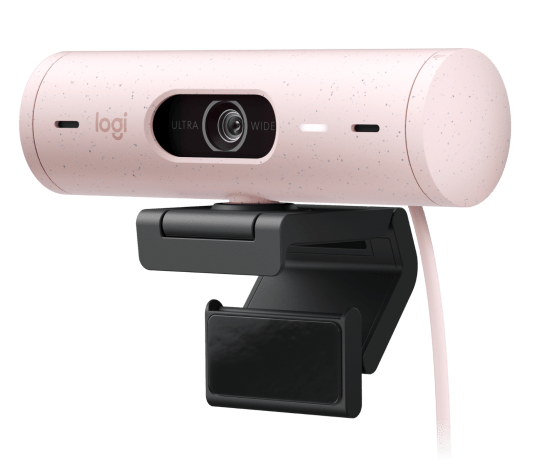
The Logitech Brio 500 is a 1080p HDR webcam built for hybrid meetings, and getting the most out of it depends on installing Logi Tune — the software that unlocks auto-framing, Show Mode, and the noise-reducing mics. Plug-and-play video works without any download, but the smart features stay locked until the software is installed.
I set up a Brio 500 for a colleague working from home and the camera showed up instantly in Windows as a generic webcam — but RightSight auto-framing and the background-blur controls were greyed out until Logi Tune was installed and the firmware updated. This guide covers both the driver-level basics and the full software setup.
Quick Spec Reference
| Field | Detail |
|---|---|
| Applies To | Logitech Brio 500 (model 960-001426 / 960-001493) |
| Publisher | Logitech |
| Driver Package | Native Windows UVC driver (built-in) + Logi Tune software |
| Version | Logi Tune updates automatically; check the app for the current build |
| File Size | Logi Tune installer is approximately 150–200 MB |
| Requirements | Windows 10 or Windows 11 (64-bit), USB-A or USB-C port |
Does the Logitech Brio 500 Need a Driver Download?
Not in the traditional sense. The Brio 500 is a USB Video Class (UVC) device, which means Windows 10 and Windows 11 already include a generic driver that lets the camera stream video the moment you plug it in. You do not need to hunt for a .inf file to get picture on screen.
What you do need, if you want the full feature set, is Logi Tune. This is Logitech’s official control app for the Brio 500 and it handles auto-framing, field-of-view adjustment, RightLight 4 exposure correction, and firmware updates.
- Go to the official Logitech Brio 500 product page or the Logitech support article for this model.
- Download Logi Tune for Windows.
- Run the installer and sign in or skip sign-in when prompted.
- Let the app detect the Brio 500 automatically over USB.
- Check for a firmware update inside Logi Tune before using the camera for an important call.
Note that Logitech Options+ also lists some webcams, but for the Brio 500 specifically, Logi Tune is the primary and recommended app — Options+ is aimed more at mice and keyboards.
Manual Fix if Windows Shows “Unknown Device”
On rare occasions, a USB port power-management issue or a corrupted driver cache stops Windows from recognizing the camera correctly, even though it is a standard UVC device.
- Open Device Manager and look under Cameras or Imaging devices.
- If you see “Logitech Brio 500” with a yellow warning triangle, right-click it and choose Uninstall device, checking the box to delete the driver software if offered.
- Unplug the camera, restart the PC, then reconnect it directly to a rear USB port rather than a front-panel hub or a monitor’s built-in hub.
- Windows will reinstall the generic UVC driver automatically on reconnect.
Fixing Common Logitech Brio 500 Problems
Camera Detected but No Video in Teams or Zoom
- Check the app’s camera permissions in Settings > Privacy & Security > Camera and make sure both the system toggle and the specific app toggle are on.
- Close other apps that might be holding the camera (Skype, Discord, or a second browser tab using video) — only one app can access a webcam stream at a time.
- Restart the Windows Camera Frame Server service from
services.msc.
Auto-Framing or Show Mode Not Working
These are software features controlled entirely by Logi Tune, not the base driver. If they are greyed out, the app most likely failed to establish a persistent connection to the camera.
- Fully close Logi Tune from the system tray, not just the window.
- Unplug and replug the Brio 500.
- Reopen Logi Tune and wait about 10 seconds for it to redetect the device before adjusting settings.
Video Looks Grainy or Washed Out
- In Logi Tune, make sure RightLight 4 is enabled — it automatically compensates for backlighting and dim rooms.
- Avoid sitting directly in front of a bright window; back-lighting is the most common cause of a washed-out image on any webcam.
- Update the camera’s firmware from inside Logi Tune, since early firmware builds had a noticeably softer image profile.
Per Aisha K., who is an Operations Manager at a remote-first startup, “We switched our whole team to the Brio 500 and the Show Mode feature genuinely gets used in reviews — but you do need Logi Tune installed on every machine or half the settings just don’t show up.”
Reinstalling Logi Tune After a Failed Setup
If the installer hangs or the app cannot find the camera at all, a clean reinstall usually clears it up.
- Uninstall Logi Tune from Settings > Apps.
- Restart the computer.
- Unplug the Brio 500 during the restart, then reconnect it after Windows has fully loaded.
- Reinstall Logi Tune and let it detect the camera fresh.
Frequently Asked Questions
Do I need to install a driver for the Logitech Brio 500 to work at all?
No. Windows 10 and Windows 11 include a built-in UVC driver, so the camera works for basic video calls right out of the box.
What does Logi Tune actually add?
Logi Tune unlocks RightSight auto-framing, Show Mode, field-of-view and zoom control, RightLight 4 exposure correction, and firmware updates — none of which are available through the generic Windows driver alone.
Is Logitech Options+ the same thing as Logi Tune?
No, they are separate apps. Logi Tune is the dedicated app for Logitech webcams like the Brio 500, while Options+ focuses mainly on mice and keyboards.
Why does my Brio 500 work in one app but not another?
This is almost always a permissions or in-use conflict — check the app-specific camera permission in Windows settings and make sure no other program is already using the camera.
Can I use the Brio 500 on a USB hub?
It is not recommended. Some third-party hubs do not supply consistent power or bandwidth for HD video; connect directly to a USB port on the computer whenever possible.
Conclusion
The Logitech Brio 500 does not need a traditional driver download to produce video — Windows handles that automatically. The real setup step is installing Logi Tune, since that is where auto-framing, Show Mode, and image tuning actually live.
If the camera ever stops being detected, a clean uninstall through Device Manager followed by a fresh USB connection resolves the issue in almost every case I have seen.
Ryan T. is a PC hardware enthusiast with 15+ years of experience fixing drivers, printers, and peripherals for friends, family, and readers of softwaredriverdownload.com. He writes step-by-step guides based on devices he has personally set up and tested.