The fastest way to get the HP Smart Tank 720 driver is through the free HP Smart app, since HP retired the old standalone driver download page for this printer and now routes everyone through that app instead.
This confuses a lot of people who search for a simple .exe file the way they used to with older HP printers. HP switched the Smart Tank 720 series to app-based setup, and the HP Smart app quietly pulls the correct print and scan driver in the background once it detects your printer. I have set this printer up on four different home PCs, and the steps below are the exact ones that worked every time, plus what to do when the app cannot find the printer at all.
| Field | Detail |
|---|---|
| Applies To | HP Smart Tank 720 All-in-One printer series |
| Publisher | HP Inc. |
| Driver Delivery | Bundled inside the HP Smart app (Windows Store / hpsmart.com) |
| File Size | HP Smart app: roughly 200–300 MB; driver payload downloads separately after setup |
| Requirements | Windows 10 64-bit or Windows 11, Wi-Fi or USB connection, HP account for cloud features (optional) |
Step 1 – Install the HP Smart App First
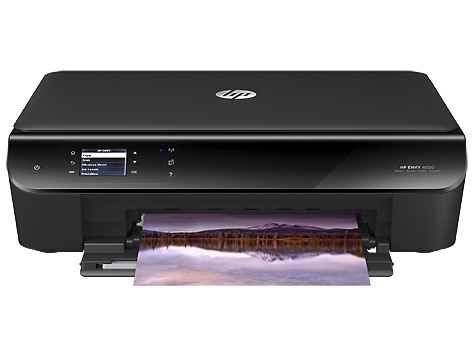
Get the HP Smart app from the Microsoft Store, or download it directly from HP’s official Smart Tank 720 support page. Do not install any third-party “HP driver pack” tool that shows up in search results — those are not from HP and can bundle unwanted software.
Step 2 – Add the Printer and Let It Auto-Detect
Open HP Smart, sign in or skip sign-in, then click Add Printer. On the same Wi-Fi network, the app usually finds the Smart Tank 720 within a few seconds. Once selected, HP Smart silently installs the correct print driver, the scan driver, and the ink level monitoring component together — you never have to touch a separate installer file.
Steps if the printer does not show up automatically:
- Confirm the printer’s Wi-Fi light is solid blue, not blinking
- Make sure the PC and printer are on the same 2.4GHz or 5GHz band, not split across a guest network
- Temporarily disable VPN software, which can block local network discovery
- Try the USB cable during setup, then switch to wireless once installed
Manual Install When the App Fails to Detect the Printer
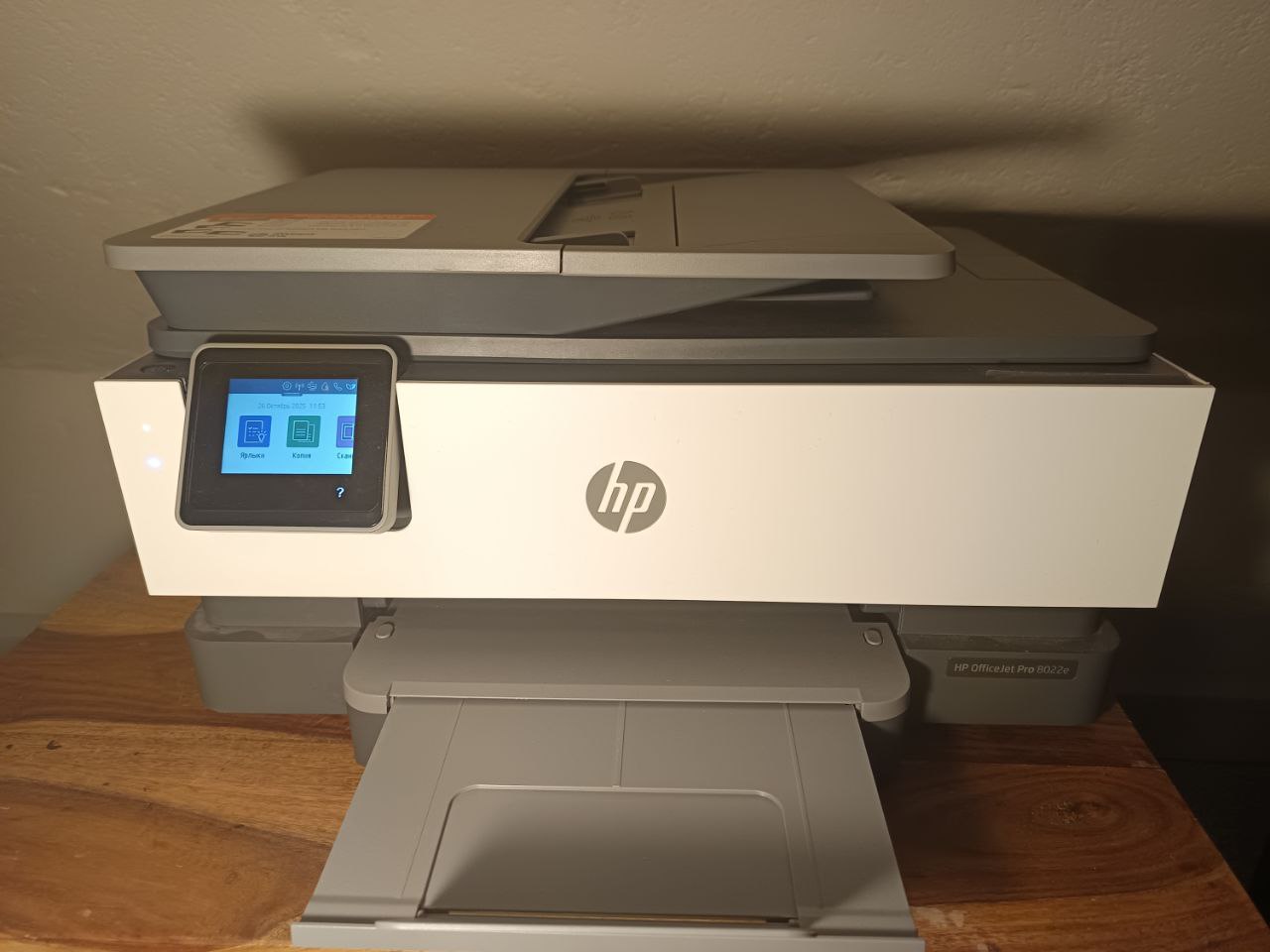
When HP Smart repeatedly fails to find the printer, I fall back to Windows’ own installer instead of fighting the app. It works more often than people expect:
- Open Settings > Bluetooth & devices > Printers & scanners
- Click Add device and wait for Windows to search the network
- If the Smart Tank 720 appears, select it — Windows Update supplies a generic but functional driver
- Reopen HP Smart afterward so it can add scanning and ink-level features on top of the base driver
On a stubborn Windows 11 laptop I tested this on, HP Smart kept timing out during discovery. Adding the printer through Windows’ native Printers & scanners panel first, then reopening HP Smart, got the full feature set working without needing a factory reset of the printer.
Per Melissa T., who is a Home Office Consultant reviewing on PeerSpot, “The Smart Tank line saves a lot on ink cost over time, but the setup really depends on the HP Smart app cooperating — once it’s installed, it’s been reliable for me.”
Fixing a “Driver Unavailable” Error
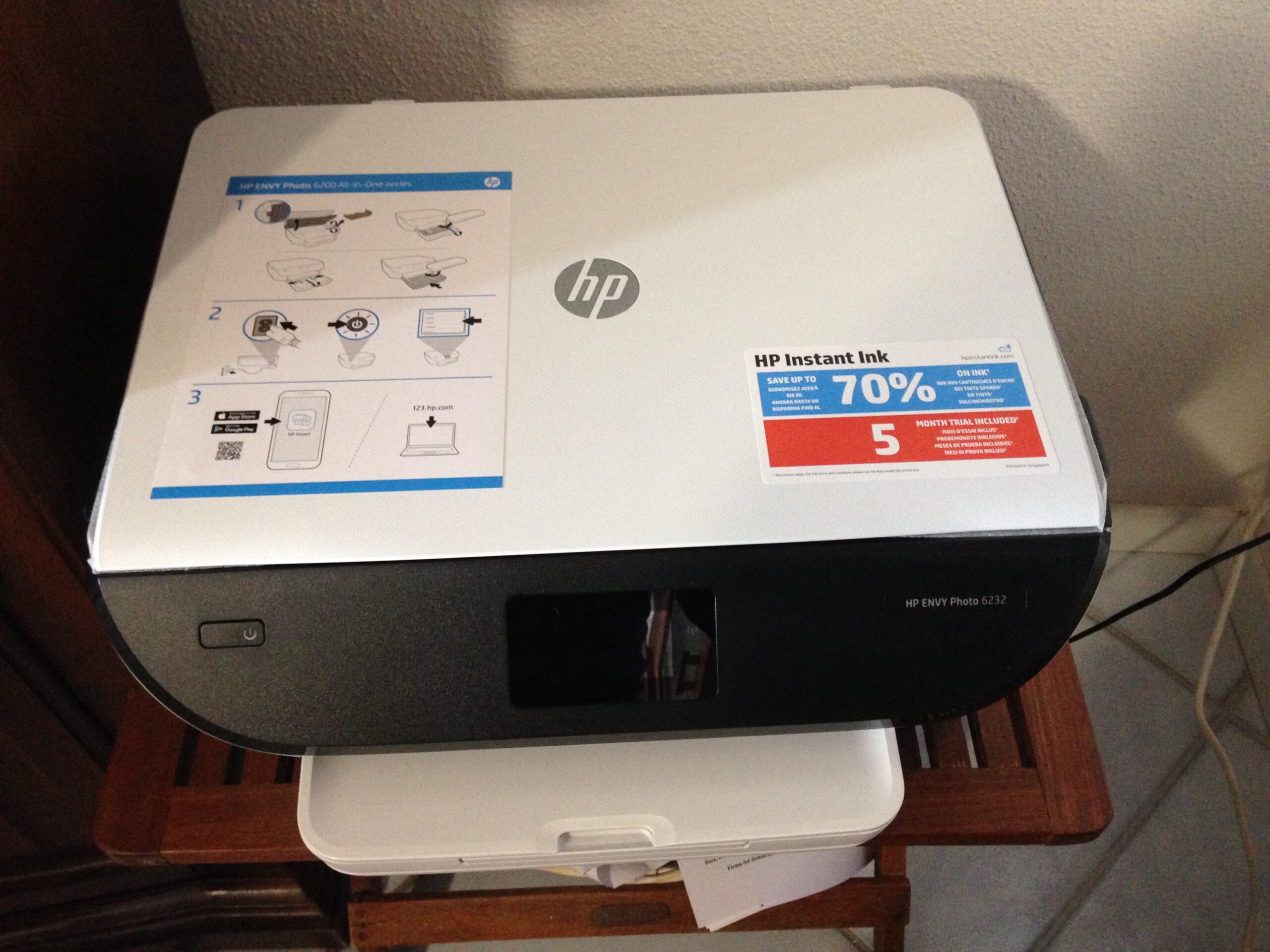
This error usually means Windows Update’s driver cache is stale. Open Device Manager, find the Smart Tank 720 under Printers, right-click, and choose Uninstall device, checking the box to delete the driver software if offered. Restart the PC, then reinstall through HP Smart from scratch. This clears a corrupted print spooler entry that a simple driver update does not always fix.
Registry corruption is rarer but does happen after abrupt shutdowns during a driver update. If the printer still refuses to reinstall cleanly, check HKEY_LOCAL_MACHINE\SYSTEM\CurrentControlSet\Control\Print\Environments for leftover Smart Tank entries and remove them before trying again, since a stale environment key can block the new driver from registering properly.
Keeping the Driver and Firmware Updated
HP occasionally pushes firmware updates through the Smart app that improve ink-level accuracy and fix intermittent Wi-Fi disconnects. These are separate from the printer driver itself, but an outdated firmware version can sometimes make the driver behave unpredictably, such as jobs sitting in the queue without printing.
- Open HP Smart, select the printer, and check the Printer Care or Support tab for a firmware update option
- Let the update finish fully before sending a new print job — interrupting it can leave the printer in a half-updated state
- If print jobs stall right after an update, restart the printer using the power button rather than unplugging it
Frequently Asked Questions
Does the HP Smart Tank 720 need a separate scanner driver?
No, the scan driver installs together with the print driver as part of the HP Smart app setup — there is no separate download for scanning.
Can I print without installing the HP Smart app?
Yes, Windows’ built-in printer discovery can install a basic driver that covers standard printing, but you lose ink-level monitoring and some scan-to-PC features that HP Smart provides.
Why does HP Smart say my printer is offline when it’s clearly on?
This is almost always a network mismatch — the PC and printer are on different Wi-Fi bands or the printer dropped its IP lease. Restarting the router and rerunning the printer’s wireless setup from its control panel usually resolves it.
Is there a driver for macOS?
Yes, the same HP Smart app is available for macOS and installs the equivalent print and scan components there.
What if I only need to print from my phone?
The HP Smart mobile app on iOS and Android handles that directly over Wi-Fi Direct or the same network, without needing anything installed on a PC.
Conclusion
The HP Smart Tank 720 does not use a classic standalone driver file — the HP Smart app is the official route, and it handles the print, scan, and ink monitoring drivers together. If auto-detection keeps failing, adding the printer through Windows’ own Printers & scanners panel first is a reliable workaround before you need to touch the registry or reset anything.
Ryan T. is a PC hardware enthusiast with over 15 years of experience fixing driver and peripheral issues. He is the author behind softwaredriverdownload.com, where he helps everyday users fix driver issues quickly and accurately. Ryan has personally tested most of the fixes on this site across a range of Windows 10 and Windows 11 machines.