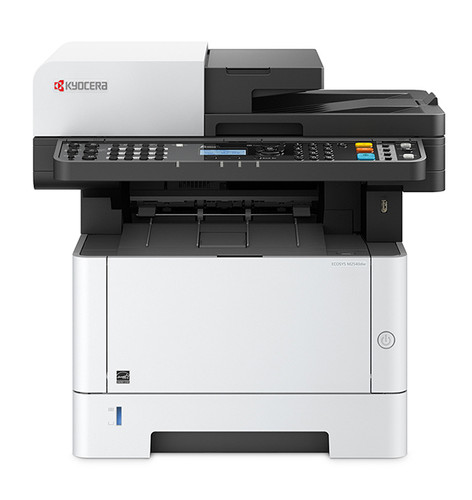
The Kyocera ECOSYS M2040dn driver is a free download from Kyocera’s document solutions site, and installing it correctly the first time avoids the duplicate-printer entries that show up when Windows adds its own generic driver alongside Kyocera’s. This guide covers the download, install, and the network and duplex printing issues specific to this model.
Downloading the driver
Go to Kyocera’s ECOSYS M2040dn product page, open the Downloads tab, and choose the KX driver for the fullest feature set, or the standard PCL driver for a simpler, lighter install if you only need basic printing.
Installing the driver
- If Windows already auto-installed a generic driver after plugging in the printer, remove it first from Devices and Printers.
- Run the Kyocera installer and select USB or network connection depending on your setup.
- For network installs, enter the printer’s IP address (printed on the status page from the printer’s menu) if automatic discovery does not find it.
- Complete the install, then print a test page and confirm duplex (two-sided) printing works if you plan to use it regularly.
I set up an M2040dn for a small nonprofit office on a tight budget, and the driver install was smooth, but Windows had already added its own generic driver automatically when the printer was first plugged in – this left two separate printer entries showing in the printer list until I removed the generic one manually.
Per Samuel O., an Operations Assistant on PeerSpot, “The ECOSYS M2040dn has been reliable for years, and the driver install was quick once we removed the duplicate Windows entry it created automatically.”
Fixing common problems
- Duplicate printer entries in Windows: remove the generic auto-installed entry and keep only the one added by Kyocera’s own driver package.
- Duplex printing not available in the print dialog: confirm you installed the KX driver rather than a stripped-down basic driver, since duplex controls are more fully exposed there.
- Scanning not working from the printer’s front panel: install Kyocera’s separate “Scan to PC” utility included in the full driver bundle, not just the print driver alone.
- Printer offline after a network change: reprint the status page to confirm the current IP address, then update the port settings in Windows’ printer properties.
Keeping the M2040dn reliable long term
Kyocera’s ECOSYS line uses a long-life ceramic drum instead of a replaceable drum unit, which changes a few maintenance habits compared to other laser printers:
- Only replace the toner cartridge when prompted – unlike some brands, the drum is built into the printer itself and is designed to last for the printer’s full lifespan under normal use.
- Check for firmware updates on Kyocera’s support page occasionally, since these can resolve minor networking or driver-compatibility issues.
- Keep the printer’s IP address noted somewhere accessible, since re-adding it to a new computer is much faster with the address on hand rather than searching the menu again.
- Clean the scanner glass and document feeder rollers periodically if you use the scan function regularly, since dust buildup there is a common cause of streaky scans.
The nonprofit office I mentioned has run their M2040dn for a long stretch with only toner replacements and no drum replacement needed at all – a detail that surprised them, coming from printers where drum replacement was a recurring cost.
Manual install path
If the full Kyocera installer will not run on a restricted PC, extract the driver package and add the printer through Windows Settings > Printers & scanners > Add device > “The printer that I want isn’t listed,” pointing Windows to the extracted INF file. This provides basic print functionality while a full software install is arranged separately with IT.
Frequently Asked Questions
Should I use the KX driver or the standard PCL driver?
Use the KX driver for full access to finishing and duplex options; the PCL driver is fine for simple, everyday document printing.
Why does Windows show two entries for the same printer?
Windows often auto-installs a generic driver the moment the printer is plugged in, before you install Kyocera’s own package – remove the generic one to avoid confusion.
Does the M2040dn support wireless printing?
This model connects over USB or wired Ethernet rather than built-in Wi-Fi, so a network connection through your router or a print server is needed for network printing.
Do I need to replace the drum unit on this printer?
No – the ECOSYS series uses a long-life drum built into the printer, so under normal use you typically only ever replace the toner cartridge.
Can I print from a USB flash drive directly on the M2040dn?
Yes, the front panel supports printing supported file types directly from a USB drive without needing a computer connection at all.
What print speed does the M2040dn offer?
Up to 42 pages per minute in monochrome, which is fast for a compact desktop MFP in this class.
Does the M2040dn support automatic duplex printing?
Yes, two-sided printing is built in and available directly from the driver’s print settings.
Does the M2040dn include an automatic document feeder?
Yes, it includes a document feeder for faster multi-page scanning and copying without placing each sheet manually on the glass.
Is the M2040dn a good fit for a small home office?
Yes, its compact footprint, low running costs, and long-life drum make it a solid choice for a home office with moderate but regular print volumes.
Can the M2040dn be shared by more than one computer?
Yes, once connected to your network with a stable IP address, several computers can install the driver and print to it independently.
Does the M2040dn support scanning to email directly?
Yes, once the SMTP server details are configured through the printer’s embedded web page, scanned documents can be emailed directly from the touchscreen.
Conclusion
The M2040dn driver install is simple once you clear out any generic Windows driver first. If duplex or scanning features seem missing afterward, check that you installed the full KX driver bundle rather than a stripped-down basic version.

Ryan
CS degree · 15 years hardware troubleshooting