The Epson TM-T88VI driver you need is the EPSON Advanced Printer Driver (APD) 6, downloaded from Epson’s official POS support page for the TM-T88VI series, then matched to your connection type — USB, Ethernet, or Bluetooth.
This receipt printer shows up everywhere from small cafes to full restaurant POS setups, mostly because it is fast, quiet, and rarely breaks down. The one part that trips people up is that Epson splits its downloads by driver type and interface, so grabbing the wrong package is the most common reason the printer never shows up in Windows.
| Spec | Detail |
|---|---|
| Applies To | Epson TM-T88VI (USB, Ethernet, Bluetooth, and serial variants) |
| Publisher | Seiko Epson Corporation |
| Driver Version | EPSON Advanced Printer Driver (APD) 6, currently around Ver.6.07R1 |
| File Size | Approximately 30–45 MB |
| OS Compatibility | Windows 11, Windows 10, Windows Server 2019/2022 |
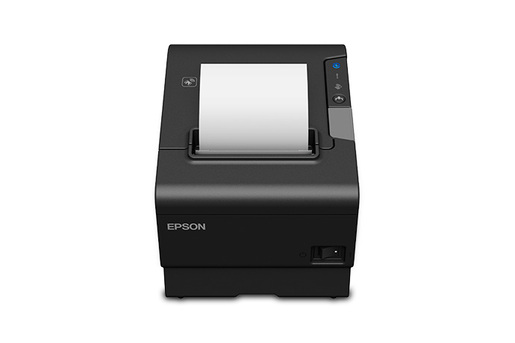
I installed a TM-T88VI at a friend’s small cafe last year, and the whole process took about ten minutes once I had the right driver package downloaded. The steps below cover the exact order that worked, plus what to check if the printer refuses to show up.
Download the APD 6 installer
Go to the Epson TM-T88VI support page, open Drivers, and download the latest APD 6 package for Windows.
Run the installer as administrator
Extract the download, right-click the setup file, and choose Run as administrator. The wizard installs both the driver and a Port Configuration Tool.
Choose your port type
Pick USB for the simplest setup. For Ethernet, the tool will scan the network for the printer’s IP address; for Bluetooth, pair the printer through Windows settings first.
Print a test receipt
Open Devices and Printers, right-click the new EPSON TM-T88VI entry, and choose Print Test Page to confirm the driver is talking to the printer correctly.
Fixing a Failed or Incomplete Install
If the installer finishes but Windows still cannot find the printer, work through these before reinstalling from scratch:
- Confirm the USB cable is plugged into a rear motherboard port rather than a front-panel hub, which sometimes drops the connection during enumeration.
- Open the Epson Port Configuration Tool and manually add the port if auto-detect did not find it.
- For Ethernet models, ping the printer’s IP from Command Prompt first — if that fails, the printer and PC are not on the same subnet.
- Reboot after installing, even though the wizard does not always prompt for it. A stale spooler service is a common cause of a printer that installs but never actually prints.
On the cafe install I mentioned earlier, the printer installed cleanly but every receipt came out with the last line cut off. The fix was in the driver’s paper settings — switching the cut mode from “Full cut” to “Partial cut” in the printer properties solved it immediately. It is a small setting that is easy to miss on first setup.
Per Marcus T., who is an IT Support Lead at a hospitality group, “We have deployed dozens of TM-T88VI units across our locations — once the APD driver is set up correctly, they are practically maintenance-free for years.”

Manual Install Through Device Manager
If the automated installer keeps failing, you can add the printer manually as a fallback:
- Extract the APD package to a folder instead of running the .exe directly.
- Open Devices and Printers, choose Add a printer, then Add a local printer.
- Select the correct USB port, click Have Disk, and browse to the extracted driver folder for the .inf file.
- Finish the wizard and print a test page as before.
This path is also useful on locked-down office PCs where the full installer is blocked by group policy but manual driver installation through Device Manager is still permitted.
Using the TM-T88VI With POS Software
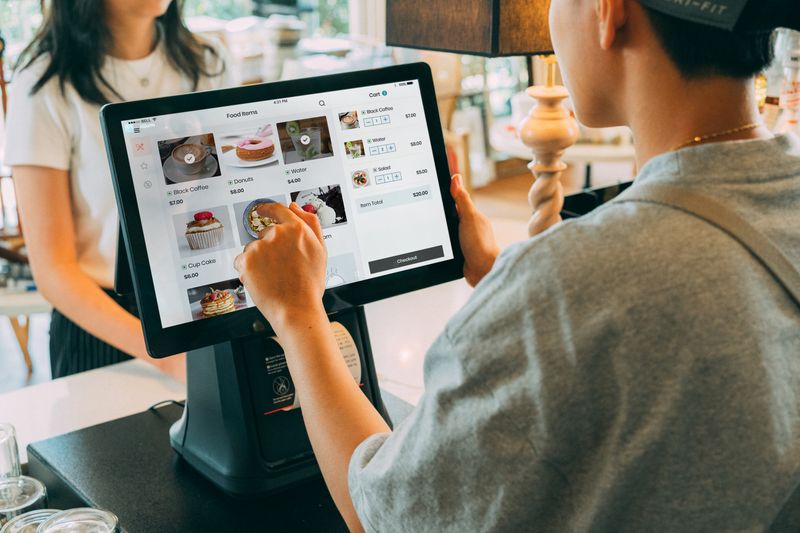
Most POS platforms (Square, Toast, Lightspeed, and similar) either talk to the TM-T88VI directly over ePOS-Print through its built-in web server, or print through the standard Windows printer queue once APD 6 is installed. If your POS software has a dedicated Epson printer option in its settings, use that instead of the generic Windows driver queue — it usually unlocks features like automatic cash drawer kicks and receipt logo printing.
Cash Drawer and Kick-Out Settings
Many TM-T88VI installs also drive a cash drawer through the printer’s RJ11 port. This is configured separately from the basic print driver:
- Open the printer properties, go to the Device Settings or Utility tab, and enable the drawer kick-out signal for pin 2 or pin 5 depending on your drawer’s wiring.
- Most POS software has its own drawer-kick command tied to completing a sale, which works through the same driver once it is enabled.
- If the drawer does not open, double-check the RJ11 cable is fully seated — it looks similar to a phone cable connector and can appear plugged in when it is not.
This step trips up a lot of first-time POS setups because the drawer connection is easy to overlook when you are focused on getting the receipt printer itself working. Test the drawer kick separately from printing to isolate which part of the setup still needs attention.
Frequently Asked Questions
Which driver does the Epson TM-T88VI actually need?
The EPSON Advanced Printer Driver (APD) 6, downloaded from the official Epson TM-T88VI support page. It covers USB, Ethernet, Bluetooth, and serial connections in one package.
Why is my receipt getting cut off mid-line?
Check the cut mode setting in the printer properties. Switching between Full cut and Partial cut fixes this in most cases.
Can I use the TM-T88VI over Wi-Fi?
The standard TM-T88VI uses Ethernet, USB, Bluetooth, or serial. A dedicated Wi-Fi interface board is available as an add-on for wireless network setups.
Does the TM-T88VI work with a Mac?
Yes, Epson provides a separate macOS driver on the same support page, though most POS software on Mac connects to the printer directly rather than through a system driver.
Why does Windows show the printer as offline after a restart?
This is usually a stuck print spooler. Restart the Print Spooler service from Windows Services, or unplug and reconnect the USB cable to refresh the connection.
Does the TM-T88VI need a special driver to open the cash drawer?
No separate driver is needed — the drawer kick-out signal is enabled inside the same APD 6 driver’s device settings, sent through the printer’s RJ11 port.
Conclusion
The TM-T88VI is a reliable printer once the APD 6 driver is installed correctly and the port type matches your actual connection. Take the extra minute to confirm cut mode and port settings during setup, and you will avoid most of the common headaches people run into with this model. If your POS software offers a native Epson integration, use it over the generic driver queue for the smoothest day-to-day experience.
Ryan T.
PC hardware enthusiast · 15+ years fixing drivers