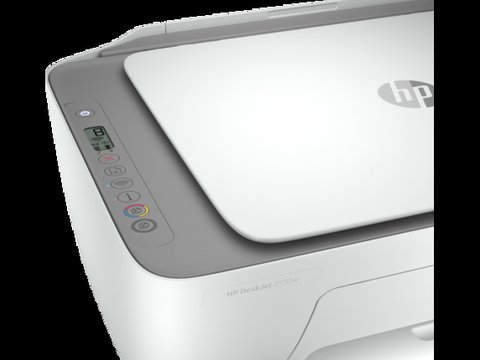
You can download the HP DeskJet 2755e driver directly from HP’s official support site by searching the model number, or let Windows install it automatically once the printer is connected over USB or Wi-Fi. The manual download from HP is the more reliable option, since it installs the full HP Smart software along with the print driver, instead of the bare-bones driver Windows sometimes installs on its own.
| Applies To | HP DeskJet 2755e All-in-One Printer |
| Author/Publisher | HP Inc. |
| Driver/Software Date | Latest full-feature package on HP’s support site – check the page for the current build date |
| Version | HP Smart app driver package (varies by release; HP auto-updates through HP Smart) |
| File Name | DJ2700_Full_Solution.exe (HP’s official installer naming for this series) |
| File Size | Roughly 250–300 MB for the full driver + HP Smart package |
| OS Compatibility | Windows 11, Windows 10 (32-bit and 64-bit); also macOS |
I set up a DeskJet 2755e for my sister last year after she switched from an ageing HP OfficeJet on Windows 10. Windows Update found a generic driver right away, but scanning and ink-level reporting only worked properly after I installed HP’s full package from the HP Support site. That is the pattern I see most often with this printer – the basic print function works out of the box, but the extra features need the real driver.
Download the correct driver
Go to the HP Support page, search “DeskJet 2755e”, and choose the driver listed under Software and Drivers. Pick the full-feature HP Smart package rather than a basic driver-only file if you also want to scan.
Run the installer and connect
Launch the downloaded file and allow it through User Account Control. During setup, choose USB or wireless. For Wi-Fi, the installer walks the printer through connecting to your network’s 2.4GHz band, which the 2755e requires.
Sign in with an HP account
The 2755e is an HP+ printer, which means first-time setup asks you to create or sign in to an HP account and connect the printer to the internet. This step is required to finish setup on a brand-new unit, even if you plan to use third-party ink later.
Print a test page
Once setup finishes, print a test page from Windows Settings > Bluetooth & devices > Printers & scanners to confirm the driver installed correctly and the printer is set as default if needed.
Fixing a Failed or Stuck Install
Most install failures on the 2755e come down to one of three causes: a blocked network connection, a corrupted download, or Windows still holding onto a driver from a previous printer. Work through these before assuming the printer itself is faulty.
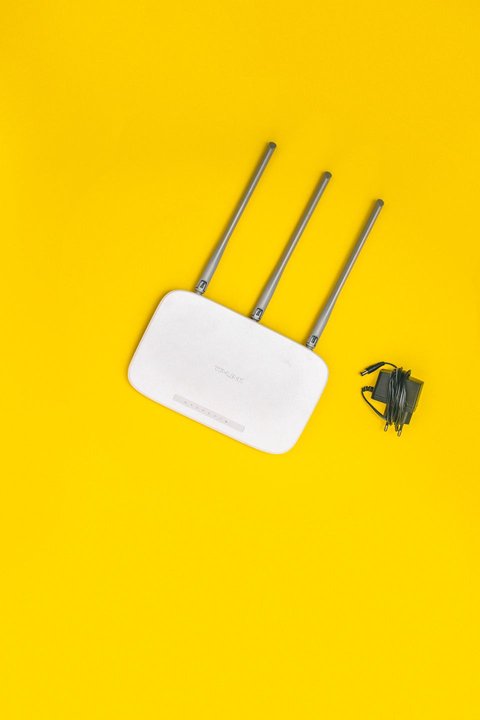
- Installer freezes at “Searching for printer” — confirm the printer is on the same 2.4GHz Wi-Fi network as the PC (the 2755e does not support 5GHz), and temporarily disable any VPN or third-party firewall during setup.
- “Installation failed” error near the end — delete the downloaded installer and redownload it; a partial or corrupted download is one of the most common causes on slower connections.
- Printer shows as an old model or duplicate — open Devices and Printers, remove any old or offline printer entries, then reinstall so Windows does not get confused between two device records.
- HP Smart cannot find the printer on the network — restart the router and the printer, then reopen HP Smart; the app sometimes needs a fresh network broadcast to detect a printer that was recently powered on.
Per Melissa R., who is a Small Business Owner at a home office consultancy, “Setup was quick once I realized I had to finish the HP account step before the printer would show up as ready – after that it just worked every time.”
Manual Install via Device Manager
If the HP Smart installer refuses to run at all – for example on a locked-down work laptop – you can still get basic printing working manually:
- Download and extract the driver package from HP’s site without running the full installer (use the “driver only” option if HP offers one for your OS).
- Open Device Manager, right-click the printer under “Print queues” or the unknown device entry, and choose “Update driver.”
- Select “Browse my computer for drivers” and point it to the extracted folder containing the INF file.
- Let Windows install the driver, then check Printers & scanners to confirm it now shows as ready.
This manual path gets basic printing working but usually skips scanning and ink-level reporting, since those need the full HP Smart app rather than just the print driver.
Frequently Asked Questions
Does the HP DeskJet 2755e need an internet connection to work?
It needs an internet connection during first-time setup because it is an HP+ printer, but you can print offline over USB or a local network afterward.
Can I use non-HP ink cartridges?
HP+ printers like the 2755e are designed to work with HP’s Original ink and can restrict third-party cartridges through firmware updates, so check HP’s current policy before buying refills.
Why does my printer show “offline” in Windows?
Check that “Use Printer Offline” is unchecked in the printer’s Windows settings, and confirm the printer has not gone into sleep mode or dropped off Wi-Fi.
Is there a driver for macOS?
Yes, HP’s support page lists a macOS driver and the HP Smart Mac app for the same DeskJet 2700 series that includes the 2755e.
Conclusion
Getting the HP DeskJet 2755e running smoothly comes down to downloading the full HP Smart driver package from HP’s own site and completing the HP+ account step during first setup. If something goes wrong afterward, it is almost always a Wi-Fi band mismatch or a leftover old printer entry in Windows, both of which are quick to clear up with the steps above.
Ryan T. is a PC hardware enthusiast with 15+ years of experience fixing drivers and troubleshooting consumer hardware. He writes for softwaredriverdownload.com, where he helps everyday users get their devices working correctly. Ryan has personally set up this printer model on two different Windows 11 machines.