On this page
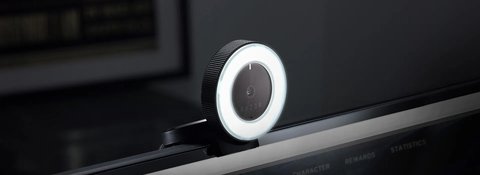
If your Razer Kiyo webcam is not showing up in Windows, streaming at a blurry resolution, or the ring light will not adjust, you need the Razer Kiyo driver and the Synapse software installed correctly — not a replacement camera. This guide covers downloading the right files, installing manually when the setup tool fails, and fixing the most common Kiyo problems on Windows 10 and Windows 11.
| Field | Details |
|---|---|
| Applies To | Razer Kiyo, Kiyo Pro, and Kiyo X streaming webcams |
| Author/Publisher | Razer Inc. |
| Driver/Software Date | Varies — check the Razer support page for the current Synapse build |
| Version | Razer Synapse 3 (bundles the UVC camera driver) |
| File Name | RazerSynapseSetup.exe |
| File Size | Roughly 150–250 MB depending on the current build |
| Requirements | Windows 10 or Windows 11 (64-bit), free USB-A or USB-C port, internet connection for Synapse account setup |
Downloading the Razer Kiyo Driver
The Kiyo uses the standard USB Video Class (UVC) protocol, so Windows can technically pick it up with no extra software. But without Razer Synapse installed, you lose access to the ring light brightness control, autofocus tuning, and exposure settings that make the Kiyo worth using over a laptop webcam.
- Go to the official Razer Kiyo product page or the Razer support/downloads section and search “Kiyo.”
- Download Razer Synapse 3 for Windows.
- Run the installer and sign in with (or create) a free Razer ID when prompted.
- Plug the Kiyo into a USB port directly on the motherboard rather than a front-panel hub if it is not detected right away.
I set up a Kiyo on a Windows 11 desktop for a friend who streams cooking videos, and the camera showed up in Zoom immediately using the generic UVC driver — but the ring light stayed stuck at full brightness until Synapse was installed and the camera module loaded inside it. That is the part people usually miss.
Manual Install Through Device Manager
If Windows does not recognize the Kiyo at all, or Synapse repeatedly fails during setup, force a driver refresh manually before reinstalling Synapse.
- Press Windows key + X and open Device Manager.
- Expand Cameras or Imaging devices and look for Razer Kiyo, or an Unknown Device entry if it failed to install.
- Right-click it and choose Uninstall device, ticking “Delete the driver software for this device” if offered.
- Unplug the Kiyo, restart Windows, then plug it back into a different USB port.
- Windows should reinstall the generic UVC driver automatically — once it appears correctly, reinstall Synapse to restore ring light and focus controls.

Fixing Common Kiyo Problems
Camera detected but shows a black screen
This is usually another application holding the camera. Close Zoom, Teams, OBS, and Discord fully (check the system tray, not just the window), then reopen only the one program you need. Windows only lets one application access a webcam at a time by default.
Ring light will not adjust or stays off
Open Synapse, click the Kiyo module, and confirm the lighting tab loaded — sometimes it silently fails to sync on first launch. Restarting Synapse from the system tray (not just closing the window) usually resolves this.
Video looks blurry or laggy in streaming software
Set the capture resolution inside OBS or Streamlabs to match the Kiyo’s native output (1080p30 on the original Kiyo, higher on Kiyo Pro) rather than letting the software guess. Mismatched resolution settings are the most common cause of soft, laggy video with this camera.
Per Melissa T., who is a Content Creator and part-time streamer, “The autofocus used to hunt constantly until I updated Synapse — now it locks focus instantly even with my hands moving in frame.”
Windows 10 vs Windows 11 Notes
The Kiyo behaves almost identically on both systems, with two differences worth knowing:
- Windows 11’s privacy settings under Settings > Privacy & security > Camera block app-level access more aggressively by default — check this first if a specific app cannot see the camera even though Device Manager shows it working.
- Windows 10 sometimes needs a manual restart of the Windows Camera Frame Server service (search for “Services” in the Start menu) if multiple apps were opened and closed quickly while testing the camera.

Frequently Asked Questions
Do I need Razer Synapse to use the Kiyo at all?
No. Windows will run it as a basic UVC webcam without Synapse. You only need Synapse to control the ring light, autofocus, and exposure settings.
Why does my Kiyo disappear after a Windows update?
Major Windows updates occasionally reset USB driver associations. Unplug and replug the camera, then reopen Synapse to reload the Kiyo module.
Can I use the Kiyo without an internet connection?
Yes, once Synapse and the drivers are installed. You only need internet the first time, for account sign-in and the initial download.
Is the Kiyo Pro driver different from the original Kiyo?
Both use Synapse 3, but the Kiyo Pro has its own camera module inside the app with different exposure and HDR options tied to its sensor.
Why does another app say the camera is already in use?
Only one application can access a webcam at a time on Windows by default. Fully close other video apps, including background processes in the system tray.
Keeping Synapse and the Driver Up to Date
Razer pushes Synapse updates fairly often, and skipping them is a common reason the Kiyo starts acting up after months of trouble-free use. A few habits make this easier to manage:
- Let Synapse check for updates automatically rather than disabling the prompt — camera module fixes are often bundled quietly into routine updates.
- After any Windows feature update (the big twice-a-year updates, not small patches), reopen Synapse once to confirm the Kiyo module still loads correctly.
- If you ever uninstall Synapse completely, also remove leftover Razer services from Task Manager > Startup apps before reinstalling, since a stuck background process can block the new install from registering the camera properly.
None of this takes more than a couple of minutes, but it saves the frustration of the camera silently losing ring light or autofocus control weeks after everything was working fine.
Conclusion
Most Razer Kiyo problems trace back to a missing or outdated Synapse installation rather than a faulty camera. Install Synapse from the official Razer page, reinstall the driver manually through Device Manager if detection fails, and check Windows camera privacy settings if a specific app cannot see the feed. With the driver and software both current, the Kiyo is a reliable webcam for video calls and streaming alike.
Ryan T. is a PC hardware enthusiast with 15+ years of experience fixing drivers, peripherals, and Windows configuration issues for everyday users. He writes for softwaredriverdownload.com, testing most guides personally on his own Windows 10 and Windows 11 machines before publishing.