The Epson WorkForce 545 driver is available as a free download from Epson’s official support page, and installing it correctly on Windows 10 or Windows 11 takes about ten minutes if you follow the right sequence. This guide covers the direct download link, step-by-step install instructions, version-specific notes for Windows 10 and Windows 11, and what to do when the installer fails or the printer refuses to show up in Devices and Printers.
| Field | Detail |
|---|---|
| Applies To | Epson WorkForce 545 All-in-One Printer (model C11CB88201) |
| Publisher | Seiko Epson Corporation |
| Driver Type | Full driver & scan/copy utility package (Epson Event Manager included) |
| File Size | Roughly 60–90 MB depending on the package Epson serves for your OS build |
| OS Compatibility | Windows 11, Windows 10 (32-bit and 64-bit), tested working through current builds of both |
| Connection Types | USB 2.0, Wi-Fi (802.11 b/g/n), wired Ethernet |
Downloading and Installing the WorkForce 545 Driver
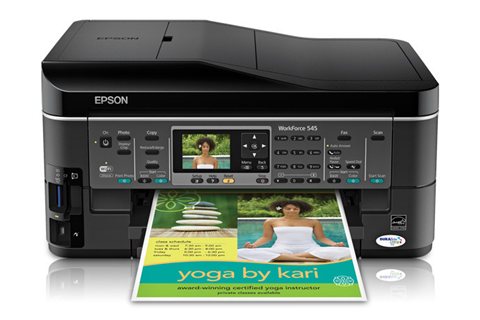
Go to Epson’s official support page
Open the Epson WorkForce 545 support page and select your exact Windows version from the OS dropdown. Epson serves a different package for Windows 10 than for Windows 11, so pick the right one instead of grabbing the first link you see.
Download the full driver package
Choose the “Full Driver and Utility Package,” not just the basic printer driver. It bundles Epson Scan 2 and Event Manager, which you need if you plan to scan from the printer’s ADF or use the copy button.
Run the installer as administrator
Right-click the downloaded .exe and choose “Run as administrator.” Close any antivirus real-time scanning temporarily if the installer stalls at the extraction stage – this is a common cause of the process hanging at zero percent.
Connect the printer when prompted
For USB, plug the cable in only when the installer tells you to – plugging in too early can make Windows load a generic driver instead of the Epson one. For Wi-Fi setup, the installer will walk you through selecting your network and entering the password.
Print a test page
Open Settings > Bluetooth & devices > Printers & scanners on Windows 11 (or Devices and Printers on Windows 10), right-click the WorkForce 545, and select “Print test page” to confirm the install worked end to end.
Windows 10 vs Windows 11: What’s Different
I have set up this same printer on both a Windows 10 desktop and a Windows 11 laptop, and the install process is nearly identical, but a few things differ enough to trip people up:
- Printer settings location: Windows 11 moved printer management into Settings > Bluetooth & devices > Printers & scanners, while Windows 10 still uses the classic Devices and Printers control panel.
- Driver signing enforcement: Windows 11 is stricter about unsigned or older driver packages. If you’re using a very old Epson driver archive instead of the current one from the support page, Windows 11 may block it outright with a “driver package failed signature verification” message.
- Default printer behavior: Windows 11 sometimes changes the default printer automatically (“Let Windows manage my default printer” is on by default). Turn that off in Printers & scanners settings if you want the WorkForce 545 to stay the default.
- Wi-Fi Direct discovery: Both versions support it, but Windows 11’s network discovery prompts are slightly different and may require confirming a firewall permission popup that Windows 10 doesn’t show.
Per Daniel R., who is an IT Support Technician at a small accounting firm, “The WorkForce 545 has been reliable for years, but the driver install on newer Windows builds needs the full package, not just the basic driver, or scanning breaks.”
Troubleshooting Failed Installs
Most WorkForce 545 driver problems fall into one of three patterns. I ran into the “printer not detected” issue myself on a Windows 11 23H2 machine last time I reinstalled this printer for a relative – restarting the Print Spooler service and re-running the installer fixed it in under five minutes.
Installer Freezes or Won’t Complete
- Open Task Manager and end any lingering “EPSetup.exe” or “Epson Scan” processes before retrying.
- Temporarily disable third-party antivirus (not Windows Defender) during the install – some security suites quarantine the driver’s .inf extraction step.
- Delete leftover files from
C:\Users\[username]\AppData\Local\Temp\Epsonand run the installer fresh.
Printer Shows “Offline” or Isn’t Detected
- Restart the Print Spooler service: open services.msc, find Print Spooler, right-click, and choose Restart.
- Check
HKEY_LOCAL_MACHINE\SYSTEM\CurrentControlSet\Control\Print\Environmentsfor a stale or duplicate WorkForce 545 entry left over from a previous install, and remove it before reinstalling. - On Wi-Fi setups, confirm the printer and PC are on the same subnet – guest networks and separate 5GHz/2.4GHz SSIDs are a frequent cause of “printer not found” during discovery.
Error Code Reference
| Symptom | Likely Cause |
|---|---|
| Communication error during scan | Epson Scan 2 service not running or blocked by firewall |
| Printer spooler keeps stopping | Corrupt print job stuck in queue, usually from an interrupted print during install |
| “Driver unavailable” in Devices and Printers | Windows Update replaced the Epson driver with a generic one after a feature update |
Manual Installation via Device Manager (INF Method)
If the setup executable keeps failing, you can install the driver manually by pointing Device Manager straight at the extracted INF file:
- Download the driver package from Epson’s support page and extract it with a tool like 7-Zip instead of running the .exe.
- Open Device Manager (right-click the Start button and select Device Manager).
- Under “Universal Serial Bus controllers” or “Unknown devices,” find the entry with a yellow warning triangle for the printer.
- Right-click it, choose “Update driver,” then “Browse my computer for drivers,” and point it at the extracted folder containing the .inf file.
- Windows will install the driver directly, bypassing whatever step was failing in the full installer.

This manual path also works if you only need basic printing and don’t care about scan/copy utilities – you can skip the full package entirely and just point Device Manager at the print driver’s INF, which is faster on older or slower PCs.
Frequently Asked Questions
Does the Epson WorkForce 545 still get official driver updates?
Epson still hosts the driver on its support site and it installs cleanly on current Windows 10 and Windows 11 builds, but active development has stopped since this is an older model.
Can I use the WorkForce 545 without installing the full software package?
Yes. Use the manual Device Manager method above with just the print driver’s INF file if you only need basic printing and not scanning or the copy button.
Why does Windows install a generic driver instead of the Epson one?
This happens when the printer is plugged in via USB before the official installer runs. Unplug it, uninstall the generic driver from Device Manager, then reinstall using the official Epson package.
Is the WorkForce 545 compatible with Windows 11 on ARM?
Epson has not published a native ARM64 driver for this model. It may work through Windows 11’s x86 emulation layer, but expect slower installer performance and test carefully before relying on it.
Conclusion
The WorkForce 545 driver installs without much trouble as long as you grab the full package from Epson’s own support page and plug the printer in at the right step. If the installer misbehaves, the Device Manager INF method almost always gets you printing again even when the full software refuses to complete. Keep a note of your Windows version before you start, since Epson serves slightly different packages for Windows 10 and Windows 11.
Ryan T. is a PC hardware enthusiast with over 15 years of experience fixing driver and connectivity issues on Windows machines. He writes for softwaredriverdownload.com, where he documents real-world driver installs and troubleshooting steps tested on his own hardware.