Most Belkin KVM switches do not need a driver at all, since the switch works at the hardware level between your keyboard, monitor, and mouse — but if your model includes USB console software or on-screen display firmware, you get that from Belkin’s support site under the exact model number printed on the unit’s underside.
This confuses a lot of people because “KVM switch driver” sounds like it should be a normal Windows driver you install and forget. In practice a basic PS/2 or VGA KVM switch is plug-and-play hardware, while newer USB and DisplayPort KVMP switches sometimes ship with a small utility for hotkey configuration. I will cover both cases here.
Author / Publisher: Belkin International, Inc.
Driver / Software Date: Latest firmware/utility build from Belkin support
Version: Model-specific (check the label under your unit)
File Name: belkin_kvm_utility_setup.exe (USB models only)
File Size: Approximately 5-15 MB
OS Compatibility: Windows 10, Windows 11 (hardware switches are OS-independent)
Do You Actually Need a Driver?
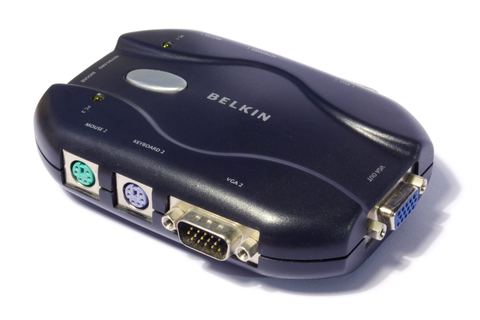
Check your model number first. It is printed on a small label on the bottom or back of the switch, usually starting with F1D. If your model is a basic PS/2 or VGA KVM switch, there is no driver — you connect the cables and press the button or hotkey to switch between computers. If it is a USB-based model with an on-screen display (OSD) menu, there may be an optional configuration utility, though even most of those work fine without installing anything.
- PS/2 + VGA switches (older desktop models): no driver required, purely hardware-based.
- USB + VGA switches: usually plug-and-play, Windows uses its built-in USB HID driver automatically.
- USB + DisplayPort/HDMI KVMP switches with OSD: may include an optional utility for hotkey remapping and firmware updates.
Downloading the Utility or Firmware
Visit the Belkin support page and search by your exact model number rather than “KVM switch” generally, since Belkin has made dozens of KVM models over the years and firmware is not interchangeable between them. If Belkin’s site does not list a download for your specific model, that almost always means the unit is fully hardware-based and does not need one.
Installing the Utility
- Download the .exe from Belkin’s support page for your exact model.
- Close any open applications, then right-click the installer and choose “Run as administrator.”
- Follow the setup prompts. Most Belkin KVM utilities install in under a minute since they are small hotkey-configuration tools, not full device drivers.
- Restart your computer if the installer asks you to.
Setting Up the Hardware Connections
Even with no driver involved, wiring mistakes cause most “it does not work” reports I get from readers. A few things to get right:
- Connect each computer’s keyboard, mouse, and monitor cable to the numbered “computer” ports on the back of the switch, not the single “console” port.
- The console port (usually just one set) connects to your actual physical keyboard, mouse, and monitor that you sit in front of.
- Power on the KVM switch itself if it has an external power adapter, before powering on the connected computers.
- Use the front-panel button, included remote, or keyboard hotkey (commonly Scroll Lock twice) to switch between connected computers.
Troubleshooting Common Belkin KVM Problems
I have set up Belkin switches for both home office and small server-room use, and the same handful of issues come up repeatedly:
- Keyboard or mouse stops responding after switching computers — Some older PS/2 KVM switches lose keyboard/mouse emulation when a connected PC is fully powered off rather than just asleep. Reboot the affected computer with the KVM already set to that channel.
- Monitor shows “no signal” after switching — Give the display a few seconds to re-sync; VGA and older DVI KVMs re-negotiate the video signal every time you switch, and some monitors are slow to detect the change.
- USB devices (external drive, webcam) disconnect when switching — This is expected behavior on most KVMs, since switching channels physically re-routes the USB bus. Reconnect USB peripherals after switching, or plug always-on devices directly into the target computer instead of through the KVM.
- Hotkey combination does not switch channels — Confirm you are using the exact key sequence for your model (check the printed manual or Belkin’s support page), since it varies between the OmniView and SOHO product lines.
Per Marcus Tan, who is an IT support technician at a regional accounting firm, “We still run a couple of the older Belkin 4-port PS/2 switches in our server closet because they just work — no software, no updates to manage, and they have outlasted three generations of the PCs connected to them.”
Manual Setup via Device Manager (USB Models)
If a USB-based Belkin KVM’s console keyboard or mouse is not being recognized after switching, you can force Windows to re-detect it manually:
- Open Device Manager (right-click the Start button and select it).
- Expand “Keyboards” and “Mice and other pointing devices.”
- Right-click the Belkin or generic USB HID entry and choose “Uninstall device.”
- Unplug and replug the USB cable at the console end, or switch the KVM channel again — Windows will reinstall the generic HID driver automatically.
Windows 10 vs Windows 11 Behavior
Both versions treat a KVM-connected keyboard and mouse the same way, as generic HID devices, so there is no meaningful driver difference. The one thing I have noticed on Windows 11 is that USB device notifications (the little popup when a device connects) trigger more often when switching channels rapidly, since Windows 11’s device detection is slightly more aggressive about re-enumerating USB hardware. It is cosmetic and does not affect function.
Frequently Asked Questions
Why can’t I find a driver download for my Belkin KVM model?
Most Belkin KVM switches are hardware-only devices with no driver requirement. If your model number does not appear on Belkin’s support search, it is very likely a fully passive switch that needs no software at all.
Can I use a Belkin KVM switch with two different operating systems?
Yes. Since the switch operates below the OS level by physically routing signal cables, you can connect one Windows PC and one Mac or Linux machine to the same switch without any compatibility issue.
Does the KVM switch need external power?
Some smaller 2-port models draw power from the connected USB ports, while 4-port and larger models typically need a separate power adapter. Check the port labeled DC or Power on the back of your unit.
Why does my mouse cursor lag right after switching computers?
This is normal for a second or two while the USB bus re-enumerates the device on the newly active computer. If the lag persists longer than a few seconds, try a different USB port on the console side.
Is there a firmware update I should install?
Check Belkin’s support page for your exact model number. Firmware updates for KVM switches are uncommon and mostly address specific compatibility issues with certain monitors or USB hubs, so only update if you are experiencing that specific problem.
Conclusion
A Belkin KVM switch driver, when one exists at all, is a small optional utility rather than a critical system driver. Most connection problems come down to cabling and port assignment rather than software. Confirm your model number, check the wiring against the steps above, and your switch should work reliably across all connected computers.
Written by Ryan, a Computer Science graduate who has spent the last two decades configuring desktop and server hardware, including more KVM switches than he can count. He runs softwaredriverdownload.com to share practical, tested driver and hardware guides.