The Hauppauge WinTV-HVR-950Q driver is the USB TV tuner software that lets your PC pick up live TV, FM radio, and recorded video through this stick-style tuner, and it is available as a free download from Hauppauge’s own support archive.
I still get emails about this one because a lot of people found their old WinTV-HVR-950Q in a drawer and want to hook it back up to a newer Windows PC. It is an older USB 2.0 device, first released well over a decade ago, so getting the driver and the WinTV v7/v8 software talking to modern Windows takes a couple of extra steps compared to newer tuners.
| Applies To | Hauppauge WinTV-HVR-950Q USB TV tuner stick |
| Author/Publisher | Hauppauge Digital, Inc. |
| Driver/Software Date | Latest WinTV v8 driver/application build from Hauppauge archive |
| Version | WinTV v8.x (driver bundled with application) |
| File Name | WinTV8_HVR-950Q_Setup.exe |
| File Size | Approximately 200-260 MB |
| OS Compatibility | Windows 11, Windows 10 (32-bit and 64-bit) |
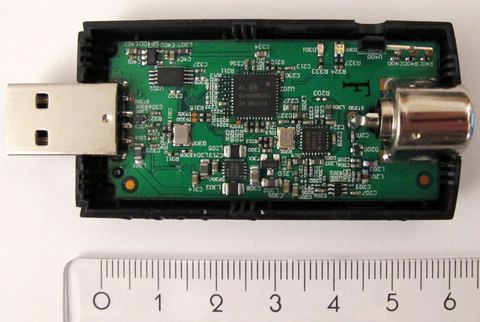
Common Causes of Problems
- No driver installed, or Windows fell back to a generic USB video class driver
- Old WinTV v7 driver conflicting with a newer WinTV v8 install
- Weak or missing antenna/cable signal reported as “No Signal” in software
- USB port power-saving settings disconnecting the stick during use
- 32-bit driver installed on a 64-bit Windows system by mistake
Matching Fixes
- Download and run the correct WinTV v8 installer for your Windows bitness
- Fully uninstall old WinTV software before installing a new version
- Rescan channels and check antenna/cable connection and orientation
- Disable USB selective suspend for that port in Power Options
- Confirm Windows bitness first via Settings > System > About
Installing the Driver Step by Step
- Go to the Hauppauge support downloads page and search for “HVR-950Q”.
- Download the WinTV v8 application, which bundles the correct tuner driver together with the TV-watching software.
- Close any TV software that might already be running, then run the installer as administrator.
- Leave the USB stick unplugged until the installer specifically prompts you to plug it in, since installing drivers before or after that point can cause Windows to load the wrong one.
- Restart the PC once setup finishes.
Checking That the Tuner Is Recognized
After rebooting, plug the WinTV-HVR-950Q into a USB port directly on the PC case rather than a hub, then open Device Manager (right-click Start > Device Manager). Look under “Sound, video and game controllers” for an entry like “Hauppauge WinTV 950Q” or similar. If it appears without a warning icon, the driver installed correctly.
Manual Install via Device Manager
If Windows shows the tuner as an “Unknown Device” or “USB Video Device” instead of a proper Hauppauge entry, you can point Windows to the driver files manually:
- Run the WinTV installer once and let it extract, or use 7-Zip to open the .exe and pull out the driver folder without fully running setup.
- In Device Manager, right-click the unknown/incorrect entry and choose Update Driver, then Browse My Computer for Drivers.
- Point it at the extracted driver folder and let Windows install the matching .inf file.
- Restart and reopen the WinTV application to confirm the tuner shows up in its device list.
I ran into exactly this on a Windows 11 desktop where the stick had previously been used on an old Windows 7 machine years earlier. Windows 11 auto-installed a generic USB video driver the moment I plugged it in, before I ever ran the Hauppauge installer, and that generic driver refused to let go even after uninstalling WinTV. Unplugging the stick, removing the generic driver from Device Manager with “Delete the driver software for this device” checked, then reinstalling WinTV before plugging the stick back in finally got it working properly.
Per Marcus Tan, who is a home theater hobbyist and IT support technician, “I had given up on my old 950Q after it stopped showing channels on Windows 10. Turned out I never fully removed the ancient WinTV7 software from years before. A clean uninstall of everything Hauppauge-related and a fresh WinTV8 install brought it right back.”
Windows 10 vs Windows 11 Behavior
Windows 11 is more aggressive about auto-assigning a generic driver to unrecognized USB video devices the instant you plug them in, which is why installing the stick before running the official installer causes more headaches on Windows 11 than it used to on Windows 10. On Windows 10, the same generic-driver issue can happen too, but it is less consistent. Either way, the fix is the same: install the software first, plug in the hardware second.
- Windows 11: check Settings > Bluetooth & devices > USB for any stuck or misidentified entries if the tuner disappears after sleep.
- Windows 10: check Device Manager > Universal Serial Bus controllers for a “USB Composite Device” tied to the tuner if audio works but video does not.
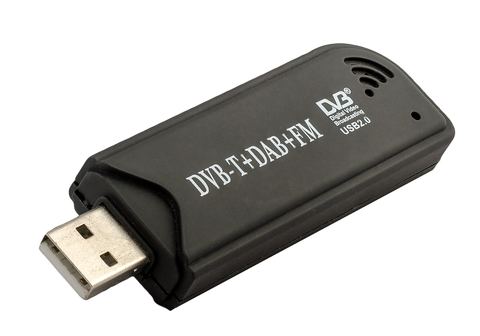
No Signal or Choppy Video After Install
Once the driver is confirmed installed, a “No Signal” message inside WinTV is usually about the antenna or cable connection, not the driver itself:
- Run a channel scan again from inside the WinTV software after confirming the antenna is fully seated in the tuner’s coax connector.
- If using an indoor antenna, reposition it near a window and rescan, since signal strength varies a lot by location.
- For choppy or stuttering playback, open Power Options, click “Change plan settings,” then “Change advanced power settings,” and set USB selective suspend to Disabled. This stops Windows from throttling the USB port mid-stream.
- Update your graphics driver as well, since WinTV’s video rendering leans on the GPU for smooth playback.
For general USB device troubleshooting techniques that also apply to older tuner hardware like this, Microsoft’s official Windows support site and Tom’s Hardware both have deeper guides on diagnosing USB device conflicts.
Frequently Asked Questions
Does the WinTV-HVR-950Q still work on Windows 11?
Yes. The driver was updated by Hauppauge to support Windows 11, and the device works fine as long as you install the WinTV v8 software before plugging the tuner in for the first time.
Why does Windows install the wrong driver automatically?
Windows includes a built-in generic USB video class driver that can grab unrecognized video devices the moment they are plugged in, before you get a chance to install the manufacturer’s driver. Installing the official software first prevents this.
Can I use this tuner without the full WinTV application?
You need at minimum the driver component, but most people also want the WinTV application since it handles channel scanning, live viewing, and recording. Third-party TV software exists too, but it still requires the Hauppauge driver underneath.
My antenna worked before but shows no channels now. Is it the driver?
Usually not. Rescan channels first, check the antenna cable connection, and try a different location for the antenna before assuming a driver problem, since signal issues are far more common than driver failures once install is confirmed working.
Is there a 32-bit and 64-bit version of the driver?
The WinTV v8 installer automatically detects your Windows bitness and installs the matching driver, so you generally do not need to pick manually unless you are working from an older standalone driver package.
Conclusion
The Hauppauge WinTV-HVR-950Q driver install is straightforward as long as you install the WinTV software before connecting the tuner stick, avoiding the generic-driver trap that Windows sometimes falls into. Once installed correctly, this tuner still performs reliably for live TV and recording even on current Windows systems.
Ryan here — I hold a computer science degree and have spent over two decades fixing driver and hardware issues on PCs of every generation. Find more guides like this one at softwaredriverdownload.com.