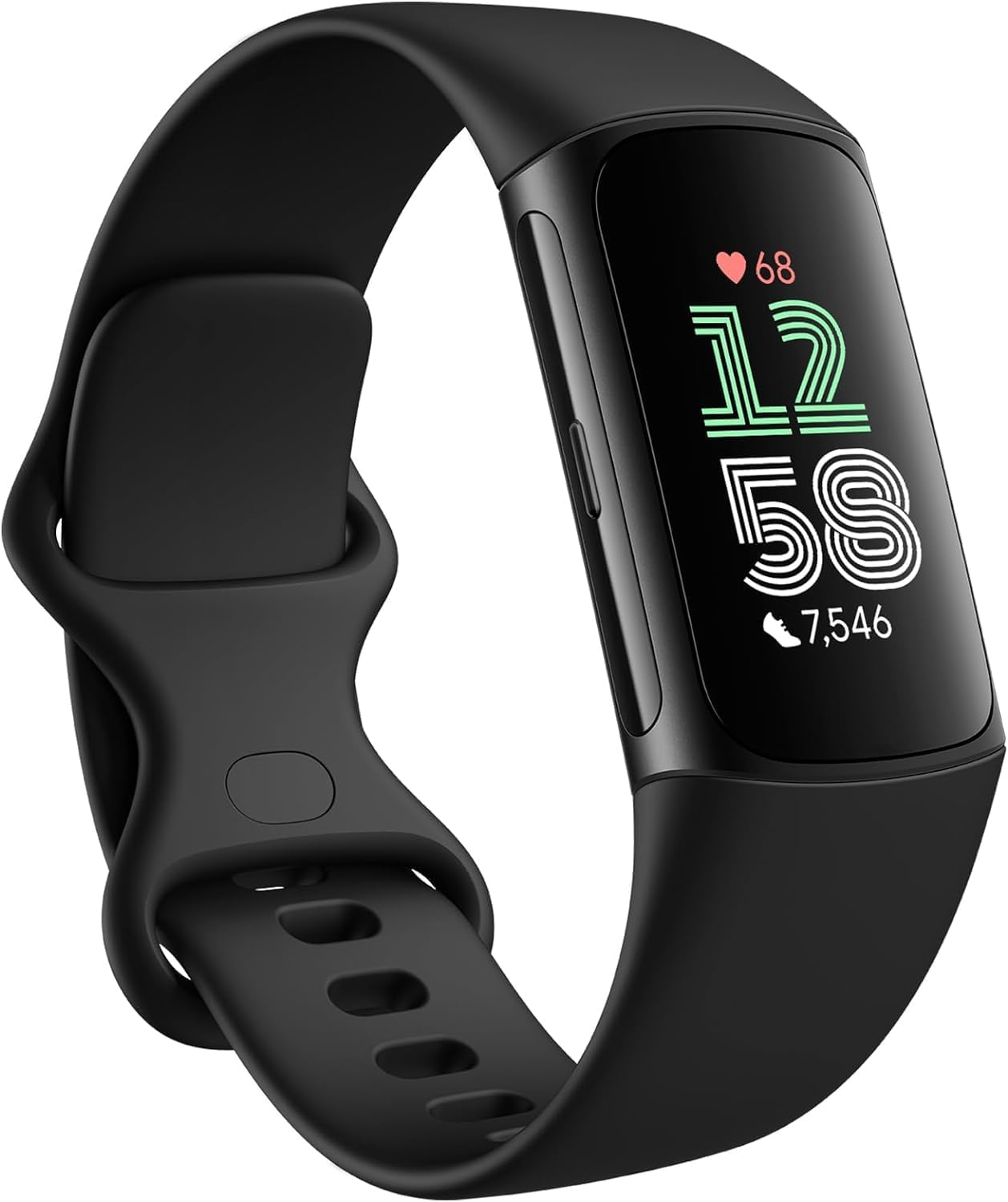
A Fitbit Charge 6 software update usually installs itself overnight while it charges, but when it does not, the fix is almost always the same three things: a low battery, a stalled Bluetooth connection, or an outdated Fitbit app. This guide covers how updates normally work on the Charge 6, and what to do when one gets stuck.
| Item | Detail |
|---|---|
| Applies To | Fitbit Charge 6 |
| Publisher | Google / Fitbit |
| Update App | Fitbit app (Android and iOS) |
| Connection | Bluetooth, paired to a smartphone |
| Requirements | Charge above 40 percent recommended, phone with internet access |
How Updates Normally Install
Fitbit pushes firmware to the Charge 6 automatically through the Fitbit app whenever the tracker is charging, connected to Bluetooth, and near your phone. You rarely have to do anything manually, but you can check the current status any time.
- Open the Fitbit app and tap your profile picture, then your device
- Scroll down to find the firmware version and update status
- If an update is available and not yet installed, tap it to start manually
When the Update Gets Stuck
I have run into this myself – my Charge 6 sat at “Updating…” in the app for close to half an hour once, with the tracker’s screen stuck on a spinning icon. Putting the phone into airplane mode for ten seconds and back off reset the Bluetooth connection, and the update finished within a minute after that.
- Low battery – charge the tracker for at least 15 minutes before retrying, ideally to over 50 percent
- Bluetooth conflicts – disconnect other Bluetooth devices temporarily, especially other wearables paired to the same phone
- Old app version – update the Fitbit app itself from the App Store or Google Play first
- Background restrictions – on Android, make sure battery optimization is not restricting the Fitbit app in the background
Restarting the Tracker
A restart clears most stuck states without losing any data:
- Connect the Charge 6 to its charging cable
- Press and hold the button on the side for about 8 seconds until the Fitbit logo appears
- Release the button and let the tracker finish restarting
- Reopen the Fitbit app and check the update status again
Per Amanda P., who is a Physical Therapist recommending fitness trackers to patients, “The Charge 6’s heart rate accuracy during recovery tracking noticeably improved after a firmware update earlier this year – it is worth keeping current.”
Re-Pairing as a Last Resort
If restarts and Bluetooth resets do not help, unpair and re-pair the device:
- In the Fitbit app, go to your device settings and choose “Unpair”
- In your phone’s Bluetooth settings, forget the Charge 6 as well
- Set the tracker up again in the app as if it were new – your account data and history are stored in the cloud, not lost
This is also useful when sleep tracking or heart rate data looks obviously wrong after an update – a fresh re-pair often resets whatever glitch was affecting sensor readings, especially for overnight sleep stage tracking.

Battery Life Right After an Update
Do not be alarmed if the Charge 6 drains a bit faster in the day or two after a firmware update. The tracker recalibrates its heart rate algorithm and re-syncs its stored data with your account, both of which use extra power temporarily. This normally settles back to the usual multi-day battery life within 48 hours.
- Keep the always-on display feature off if battery life matters more to you than convenience – it is one of the biggest battery drains on this model
- Continuous heart rate tracking during workouts uses noticeably more power than the resting-only mode
- GPS-connected workouts (using your phone’s GPS) drain the tracker faster than plain step and heart rate tracking
What to Do If the App Shows the Wrong Data After Updating
Occasionally the day’s step count or heart rate graph looks blank or frozen right after a firmware update finishes syncing. This is usually just a sync delay rather than lost data:
- Pull down on the Fitbit app’s dashboard to force a manual refresh
- Close and reopen the app completely
- Give it a few minutes – a large sync after a firmware update can take longer than a normal daily sync
Frequently Asked Questions
Why does my Charge 6 need to be charging to update?
Firmware updates use extra power and can take several minutes, so Fitbit requires the tracker to be on the charger to avoid it dying mid-update, which could otherwise corrupt the installation.
Can I force a software update manually?
Yes, open the Fitbit app, tap your device, and check the firmware section – if an update is available you can start it there instead of waiting overnight.
Will a software update reset my step and sleep history?
No. Your activity history is stored in your Fitbit account in the cloud, not only on the device, so a firmware update does not erase it.
My Charge 6 screen is frozen after an update. What should I do?
Hold the side button for about 8 seconds while it is on the charger to force a restart. If the screen stays frozen after that, leave it charging for 30 minutes and try the restart again.
Does the update run differently on Android versus iPhone?
The update process itself is the same, but Android phones sometimes need background battery optimization turned off for the Fitbit app specifically, since some Android manufacturers restrict background Bluetooth activity more aggressively than iOS does.
How often does Fitbit release firmware updates for the Charge 6?
There is no fixed schedule – updates come out every few weeks to every couple of months depending on what bug fixes or features are ready. Keeping the Fitbit app itself updated is the best way to make sure you receive them promptly.
Conclusion
Charge 6 software updates are mostly automatic, and stuck updates are almost always fixed by charging the tracker, resetting the Bluetooth connection, or restarting the device itself. Keep the Fitbit app updated and check the firmware status occasionally rather than assuming everything installs silently in the background.
Ryan
CS degree · 15 years hardware troubleshooting