| Spec | Detail |
|---|---|
| Applies To | Corsair HS55 WIRELESS / WIRELESS CORE gaming headset |
| Author/Publisher | Corsair |
| Software | Corsair iCUE (for firmware updates and EQ presets) |
| File Size | Roughly 300-400 MB for the full iCUE installer |
| Connectivity | 2.4GHz USB wireless dongle, plus Bluetooth on the non-Core version |
| Requirements | Windows 10 or 11, free USB-A port for the wireless dongle |
Getting the HS55 Wireless Recognized in Windows
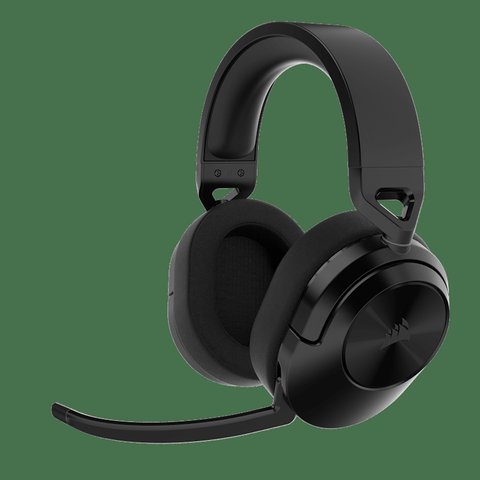
The HS55 does not need a traditional driver download to work — Windows uses its built-in USB audio driver as soon as you plug in the wireless dongle. What you actually want to download is Corsair iCUE, which handles firmware updates, EQ presets, and sidetone adjustment for the headset.
Plug in the 2.4GHz USB dongle
Use a USB-A port directly on your PC rather than a front-panel hub — this avoids most of the crackling and dropout complaints people report.
Power on the headset
Hold the power button until the LED lights up. Windows should detect it automatically as a USB audio device within a few seconds.
Set it as default playback and recording device
Right-click the speaker icon in the taskbar, open Sound settings, and select the HS55 for both output and input (microphone).
Install Corsair iCUE for extra features
Download it from the Corsair downloads page to access EQ presets, sidetone control, and firmware updates.
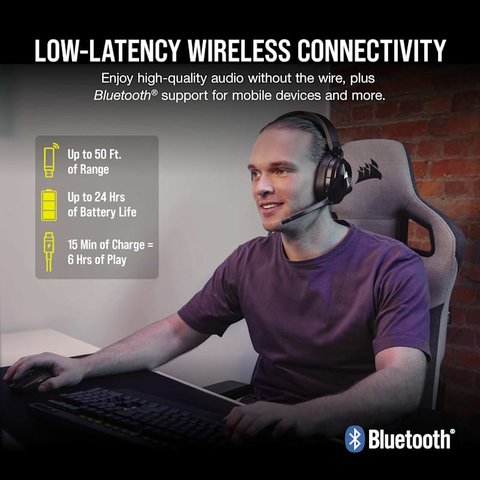
I picked one of these up for evening gaming sessions after my old wired headset finally gave out, and setup really was just plug in the dongle and go — no driver CD, no manual download required for basic sound. The one thing I did have to fix manually was microphone volume, which defaulted quite low until I bumped it up in Windows Sound settings.
Fixing Common HS55 Audio Problems
- Crackling or static over wireless: Move the USB dongle to a rear USB port away from other wireless devices, or use a USB extension cable to get it further from Wi-Fi routers and other 2.4GHz interference sources.
- Microphone sounds too quiet: Check both the Windows input volume slider and the boost setting under microphone properties, Levels tab — Windows sometimes resets microphone boost after updates.
- Headset shows connected but no sound: Confirm it is selected as the default playback device, not just listed as an available device, since Windows can show multiple audio devices without one being active.
- Battery drains unusually fast: Update the firmware through iCUE — Corsair has released firmware updates in the past specifically addressing battery reporting accuracy and standby power draw.
If Windows does not detect the headset at all after plugging in the dongle, open Device Manager and check under Sound, video and game controllers for a device with a yellow warning icon. Right-click it, choose Update driver, then Search automatically — Windows Update usually resolves this without needing Corsair’s software at all. As a last resort, uninstall the device entry entirely, unplug the dongle, restart, then plug it back in for a completely fresh detection.
Per Jordan K., who is a Streamer and Content Creator, “Switching to the HS55 wireless meant one less cable running across my desk during streams, and the mic quality held up fine for viewers without any extra software tweaking.”
Updating Firmware Through iCUE
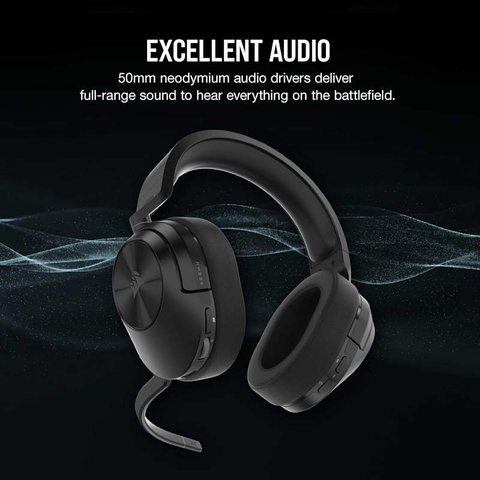
- Open Corsair iCUE and select the HS55 from the device list on the left.
- Check the Firmware tab — if an update is available, iCUE shows a notification with a version number.
- Click Update and keep the headset powered on and connected until the process finishes, usually one to two minutes.
- Restart the headset once the update completes to confirm the new firmware loaded correctly.
Do not disconnect the dongle or turn off the headset mid-update, since an interrupted firmware flash can leave the headset unresponsive until Corsair support walks you through a recovery process.
Frequently Asked Questions
Do I need to install a driver for the HS55 to work at all?
No, basic audio works through Windows’ built-in USB audio driver. Corsair iCUE is only needed for EQ presets, sidetone, and firmware updates.
Can I use the HS55 wireless dongle with a PS5 or Nintendo Switch?
Yes, the 2.4GHz dongle works with PlayStation 5 and Nintendo Switch for audio, though iCUE software features are Windows and Mac only.
Why does my headset disconnect randomly during long sessions?
This is often a USB power-saving setting. In Device Manager, find the USB Root Hub the dongle connects through, open Properties, Power Management tab, and uncheck “Allow the computer to turn off this device to save power.”
Is the HS55 Wireless the same as the HS55 Wireless Core?
No, the Core version drops Bluetooth and Dolby Audio 7.1 support to hit a lower price point, but both use the same 2.4GHz dongle for basic wireless audio.
Does iCUE need to run in the background all the time?
Not for basic audio, but leaving it running lets you catch firmware updates as they release and keeps EQ presets active without reopening the app each session.
EQ Presets and Sidetone Adjustment
Once iCUE is installed, spend a few minutes with the EQ tab rather than sticking to the flat default profile. A few adjustments that make a noticeable difference for gaming and voice chat:
- The built-in “FPS” preset boosts footstep and directional audio cues, which helps in competitive shooters more than a flat or bass-heavy profile.
- Sidetone (hearing your own voice through the headset) defaults to off on most systems — turning it on at a low level stops people from shouting into the mic without realizing it.
- Save a custom EQ profile for music or movies separately from your gaming profile, since iCUE lets you switch between saved profiles with one click instead of re-adjusting sliders every time.
I found the default flat profile fine for general use, but switching to the FPS preset during competitive matches made a real difference picking out footsteps that used to blend into background music — a small software tweak that had nothing to do with the driver itself working correctly.
Conclusion
The Corsair HS55 wireless headset works with Windows out of the box through the built-in USB audio driver, so most setup issues come down to dongle placement or default device selection rather than an actual missing driver. Install Corsair iCUE if you want EQ control and firmware updates, and keep the wireless dongle on a rear USB port away from interference for the most stable connection.
Ryan
Self-taught driver/hardware specialist · 15 years experience