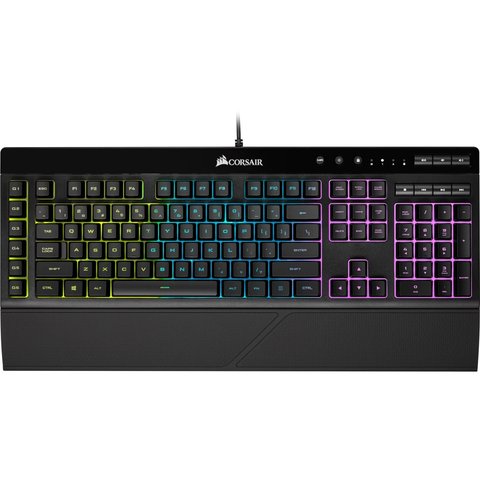
The Corsair K55 RGB driver download is really the Corsair iCUE software, available free from Corsair’s official downloads page — the keyboard types without any software installed, but iCUE is required for RGB lighting effects, macro keys, and the media control profile. This guide covers the download, setup, and the lighting/detection problems people run into most.
| Field | Detail |
|---|---|
| Applies To | Corsair K55 RGB gaming keyboard (CH-9206015-NA) |
| Publisher | Corsair |
| Software Package | Corsair iCUE |
| File Size | Approximately 300–450 MB for the full iCUE install |
| OS Compatibility | Windows 10 and Windows 11, 64-bit |
Downloading and Installing iCUE for the K55 RGB
- Go to the official Corsair downloads page and search for iCUE (not the keyboard model directly, since iCUE covers all Corsair peripherals).
- Download the latest iCUE installer and run it as administrator.
- Plug the K55 RGB into a USB port if it is not already connected — iCUE needs it detected during the setup wizard.
- Restart your computer once installation finishes, since iCUE installs background services that need a fresh boot to register properly.
- Open iCUE, confirm the K55 RGB appears in the device list, then explore the Lighting Effects and Actions tabs to customize RGB zones and macros.
Why it happens
iCUE background service was stopped or not set to auto-start with Windows.
Another RGB control app (Razer Synapse, MSI Mystic Light, motherboard RGB software) is fighting for control of the lighting.
USB port power management put the keyboard to sleep and it did not wake cleanly.
A stale or corrupted iCUE profile is stuck loaded from a previous session.
How to fix
Open Task Manager → Startup tab, confirm iCUE is enabled, or search “services.msc” and set the Corsair service to Automatic.
Fully close other RGB software or uninstall it if you no longer use those peripherals.
In Device Manager, open the keyboard’s USB Root Hub properties, Power Management tab, and untick “Allow the computer to turn off this device.”
Reset to a default lighting profile inside iCUE, or reinstall iCUE fresh if profiles will not load correctly.
Setting Up Macro Keys and Media Controls
I set up a K55 RGB for a friend’s streaming setup, and the 6 dedicated macro (G) keys along the left side felt useless until we mapped them to Elgato Stream Deck-style shortcuts inside iCUE. Once configured, switching scenes and muting the mic became one-key actions instead of digging through OBS menus.
- Open iCUE, click the K55 RGB device, and go to the Actions tab to record or assign macros to the G1–G6 keys.
- Use the dedicated media roller and playback buttons directly — these work without any software configuration needed.
- Save different macro profiles for gaming versus streaming, and switch between them with the profile button on the keyboard itself.
Common K55 RGB Problems
Keyboard Not Detected in iCUE
Try a different USB port, preferably a rear motherboard port rather than a front-panel hub. If it still does not appear, uninstall iCUE completely through Windows Settings, restart, and reinstall the latest version rather than updating over an existing install.
Some Keys Stopped Responding
- Check for spilled liquid or debris under the keycaps — the K55 RGB has IP42 spill resistance but stuck keys can still happen from dust buildup over time.
- Confirm no macro or remapping accidentally disabled that key inside iCUE’s Actions tab.
Per Jason M., who is a Software Developer and PC gamer on G2, “iCUE takes a minute to install but once it is running, the K55 RGB’s lighting and macro keys work exactly as expected without any random disconnects.”
Using the K55 RGB Without iCUE
If you cannot install iCUE on a restricted work or school PC, the K55 RGB still functions as a standard USB HID keyboard with default static lighting — typing, media keys, and the volume roller all work without any software. You lose macro programming and custom lighting effects, but basic use is unaffected.
K55 RGB vs. K55 RGB PRO
Corsair sells a few different K55 generations, and the driver/software steps are the same across all of them, but the hardware specs differ enough to matter if you are choosing between models.
| Spec | K55 RGB | K55 RGB PRO |
|---|---|---|
| Switch Type | Rubber dome | Rubber dome (quieter profile) |
| Lighting Zones | 3-zone RGB | Per-key RGB |
| Macro Keys | 6 dedicated G-keys | 6 dedicated G-keys |
| Software | Corsair iCUE | Corsair iCUE |
Both use the exact same iCUE download and installation process described above, so if you own either version, the driver steps in this guide apply without changes.
Value-Add: Getting More From iCUE
- Enable iCUE’s hardware lighting mode if you want RGB effects to persist even when the PC is off or asleep, useful for keeping a base glow overnight.
- Group the K55 RGB with other Corsair peripherals (mouse, headset) in iCUE to sync lighting effects across your whole desk setup.
- Back up your macro and lighting profiles occasionally using iCUE’s export feature, so a fresh Windows install does not mean rebuilding every macro from scratch.
Frequently Asked Questions
Do I need iCUE for the K55 RGB to type normally?
No, Windows detects it as a standard keyboard automatically. iCUE is only needed for RGB customization and macro programming.
Is the Corsair K55 RGB compatible with Windows 11?
Yes, Corsair maintains active Windows 11 support for the K55 RGB through the current iCUE software.
Why does my K55 RGB lighting reset after restarting my PC?
This usually means iCUE is not set to launch automatically on startup. Enable it in iCUE’s settings under General → Start iCUE automatically.
Can I use the K55 RGB on a Mac?
Yes, typing and media keys work natively, and Corsair offers a limited macOS iCUE version for basic lighting control.
Where do I download iCUE safely?
Only use Corsair’s official downloads page to avoid bundled adware from third-party driver sites.
Conclusion
The Corsair K55 RGB works right away for basic typing, but installing iCUE unlocks the RGB lighting, macro keys, and profile switching that make it worth the price. Most lighting and detection issues clear up by checking USB power management settings and closing conflicting RGB software. Keep iCUE updated for the smoothest macro and lighting experience.
Ryan T. is a PC hardware enthusiast with 15+ years of experience fixing drivers on everything from keyboards to printers. He writes for softwaredriverdownload.com, sharing practical, tested fixes for everyday Windows hardware problems.