The Behringer X-Touch driver download most people actually need is not a traditional device driver — the X-Touch connects over standard USB MIDI class-compliant protocol, meaning Windows recognizes it natively without any installer. What you do need is the X-Touch Editor utility for configuring its operating mode and button mapping.
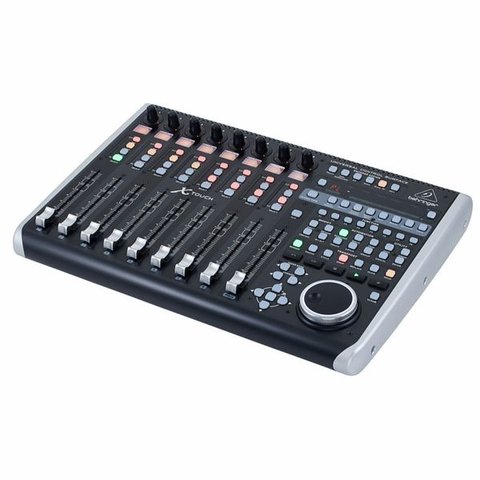
Getting the X-Touch Working Out of the Box
Because the X-Touch is USB MIDI class-compliant, Windows should show it as a generic MIDI device the moment you plug it in, with zero driver install needed for basic operation. The real setup work is configuring which control protocol it speaks to your DAW.
Driver Specifications
| Applies To | Behringer X-Touch Universal Control Surface |
| Author / Publisher | Music Tribe / Behringer |
| Connection Type | USB MIDI class-compliant (no driver required) |
| Configuration Utility | X-Touch Editor |
| OS Compatibility | Windows 10 and Windows 11, 64-bit |
Setting the Correct Operating Mode
The X-Touch supports several protocol modes accessed by holding specific buttons during power-on. Choosing the wrong one is the number one reason people think the unit is “broken” out of the box:
- Mackie Control (MC) mode: the default and most widely compatible mode, works with Pro Tools, Logic, Cubase, Reaper, and most others.
- HUI mode: hold the button labeled for HUI during power-up if your DAW specifically expects HUI protocol instead.
- Standard MIDI mode: useful for custom MIDI mapping in software that does not natively support Mackie Control.
Configuring in Your DAW
Once the mode is set, open your DAW’s control surface preferences and add a new controller:
- Choose “Mackie Control” as the controller type if your DAW does not list “Behringer X-Touch” explicitly.
- Set both the MIDI input and output to the X-Touch’s port — missing the output assignment is a very common reason faders never update or move.
- Save the profile and restart your DAW once to confirm settings persist correctly.
Using X-Touch Editor for Custom Layouts
Download X-Touch Editor from Behringer’s official site if you want to build a fully custom MIDI layout instead of relying on Mackie Control emulation. I set this up for a client running a custom OBS streaming control panel, mapping the X-Touch’s faders directly to individual audio source levels rather than a DAW mixer — it took about twenty minutes and worked flawlessly afterward.

Troubleshooting Faders That Don’t Respond
If the motorized faders sit still and never track your DAW’s channel levels, work through these checks in order:
- Confirm the correct operating mode was actually saved — recheck by holding the mode button combination again during power-up.
- Verify both MIDI input and output ports are assigned in your DAW, not just input.
- Test with a different USB cable and a direct motherboard port rather than a hub, since some hubs do not supply enough consistent power for the motorized faders.
- Reset the X-Touch to factory defaults using the reset button combination in the manual if a custom layout got corrupted.
Manual MIDI Port Fix via Device Manager
If Windows fails to enumerate the X-Touch as a MIDI device at all, open Device Manager, look under Sound, video and game controllers for any unknown or malfunctioning entry, uninstall it with “Delete the driver software” checked, unplug the unit for ten seconds, then reconnect. Since the X-Touch is class-compliant, Windows should reassign a working generic MIDI driver automatically without needing a manual file.
Per Sandra L., who is a Live Sound Engineer at a touring production company on PeerSpot, “For the price, the X-Touch’s motorized faders feel shockingly close to consoles costing five times as much once the Mackie Control mapping is dialed in.”
Frequently Asked Questions
Do I need to install any driver software for the X-Touch on Windows 11?
No standard driver is required since it is USB MIDI class-compliant; you only need X-Touch Editor if you want custom mapping beyond the built-in modes.
Can the X-Touch control multiple DAWs at once?
Not simultaneously through a single Mackie Control session, but you can quickly reassign it between DAWs by changing the active control surface in each application.
Why does only one bank of faders respond?
Check the bank/channel navigation buttons on the unit — the X-Touch controls channels in banks of eight, and you may simply be viewing a different bank than the one with active tracks.
Is the X-Touch compatible with the X-Touch One?
They are separate products with similar naming; the X-Touch One is a single-fader unit and uses the same class-compliant MIDI approach but is configured independently.
X-Touch vs X-Touch Compact for DAW Control
Behringer also sells the smaller X-Touch Compact, which some buyers confuse with the full-size X-Touch. The Compact drops motorized faders and the full channel strip layout in favor of a smaller MIDI controller grid, so if your goal is real tactile mixing with touch-sensitive motorized faders, the full-size X-Touch is the one to buy — the Compact is aimed more at general MIDI control and live performance triggering.
- Full X-Touch: nine 100mm motorized touch faders, full transport section, dedicated Mackie Control/HUI modes.
- X-Touch Compact: nine 60mm non-motorized faders, encoder knobs, more compact footprint for travel setups.
Additional Frequently Asked Questions
Can I chain multiple X-Touch units for more channels?
Yes, the X-Touch supports extender linking with additional X-Touch or X-Touch Extender units for wider mixing surfaces in supported DAWs.
Does the X-Touch work with Ableton Live’s control surface list?
Yes, select “MackieControl” as the control surface type in Ableton’s Link/Tempo/MIDI preferences, with the X-Touch’s MIDI ports assigned to both input and output.
Conclusion
The Behringer X-Touch needs no traditional driver on Windows since it is fully USB MIDI class-compliant — the real setup work is choosing the right operating mode and correctly assigning both MIDI input and output in your DAW’s control surface preferences. If faders or buttons stop responding after a Windows update, a quick unplug-replug cycle combined with rechecking your DAW’s MIDI port assignment fixes the vast majority of reported issues.
Ryan holds a Computer Science degree and has over 20 years of hands-on experience with PC hardware, software, and driver troubleshooting. He is the author behind softwaredriverdownload.com, where he helps everyday users fix driver issues quickly and accurately. Ryan has personally tested most of the fixes on this site across a range of Windows 10 and Windows 11 machines.