Follow each step in order until the headset is detected and tracking correctly.
The Oculus Rift S needs the Oculus PC app (now the Meta Quest desktop app) plus a recent NVIDIA or AMD graphics driver to work — the headset itself has no separate driver file to download. Most “Rift S not detected” problems trace back to an outdated GPU driver, a USB port that cannot deliver enough bandwidth, or the older Oculus software failing to recognize newer Windows updates.
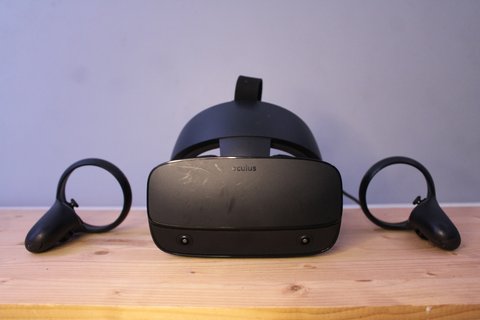
| Field | Detail |
|---|---|
| Applies To | Oculus Rift S PC VR headset |
| Publisher | Meta (formerly Oculus/Facebook) |
| Software | Meta Quest desktop app (formerly Oculus PC app) |
| File Size | Roughly 300–500 MB for the desktop app itself |
| Requirements | Windows 10/11 64-bit, USB 3.0 port, DisplayPort 1.2, compatible NVIDIA/AMD GPU |
Install the Meta Quest desktop app (most common starting point)
Download it from Meta’s official Rift PC VR resources page. This app handles headset firmware, tracking calibration, and the Oculus runtime that games rely on — there is no standalone Rift S driver file separate from this app.
Update your graphics driver first
Grab the latest driver from NVIDIA’s driver download page or AMD’s support page depending on your GPU. The Rift S display runs at a fixed refresh rate that older drivers sometimes fail to negotiate correctly, which shows up as a black lens or flickering image.
Use the right USB port
Plug the Rift S directly into a USB 3.0 port on the motherboard, not a front-panel header or a USB hub. The single Rift S cable carries USB 3.0 data plus DisplayPort video, and a port that cannot supply full bandwidth causes constant tracking loss or the app reporting “USB not detected.”
Connect DisplayPort directly to the GPU
The Rift S needs its DisplayPort connection wired straight into the graphics card’s own DisplayPort output, never through a motherboard video port or an adapter. Laptops without a native DisplayPort output generally cannot run the Rift S at all.
Run the built-in hardware check
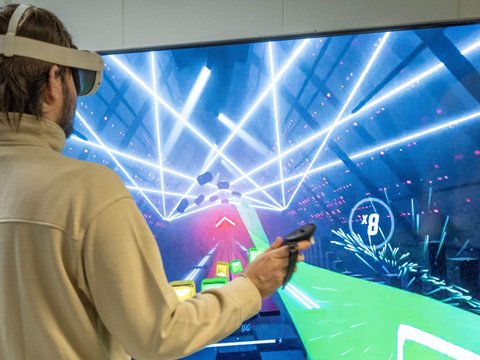
The Meta Quest desktop app runs a compatibility check on first launch. If it flags your USB controller or GPU, it usually links directly to the specific driver or setting that needs fixing rather than leaving you guessing.
Recalibrate inside-out tracking in a well-lit room
Rift S uses camera-based inside-out tracking with no external sensors. Dim lighting, plain white walls, or reflective glass surfaces confuse the tracking cameras — add more ambient light and some visually distinct furniture or posters within view of the headset’s cameras if the guardian boundary keeps failing to set up.
I ran into the classic “black screen in one lens” issue on my own Rift S after a Windows feature update replaced my GPU driver with an older bundled version. Reinstalling the latest NVIDIA driver directly from their site (not the one Windows Update offered) fixed it in about five minutes, with no headset hardware fault involved at all.
Per Jordan K., a Software Developer reviewing PC VR hardware on a hobbyist forum re-published on G2, “Ninety percent of the Rift S problems I have seen turn out to be GPU driver related, not the headset itself — always update graphics drivers before troubleshooting anything else.”
Common Error Messages and What They Actually Mean
- “Headset not detected” — almost always a USB or DisplayPort cable seating issue; reseat both connectors at the PC end first
- “Unable to connect to your GPU” — the DisplayPort cable is plugged into a monitor output on the GPU rather than being routed directly to the headset, or the GPU itself falls below Meta’s minimum supported spec
- “Please close other applications using your camera” — another app (often a webcam utility or video call software) is holding the room-tracking cameras open; close background apps and relaunch
- Guardian boundary keeps failing to draw — low light or a very plain room confuses the inside-out tracking cameras; add lighting and visual reference points as covered above
Checking Your USB Controller in Device Manager
Not all USB 3.0 ports are equal. Some motherboards route certain rear ports through a third-party USB controller chipset that struggles with the Rift S’s combined video-and-data bandwidth requirement.
- Open Device Manager and expand Universal Serial Bus controllers
- Look for any entry showing a yellow warning icon and update that specific driver first
- If your motherboard has both an Intel-based and a third-party (ASMedia, etc.) USB controller, try moving the Rift S cable to a port wired to the Intel controller if problems persist
- Update your motherboard’s chipset driver from the manufacturer’s support page, not just the generic Windows Update version, since chipset drivers directly affect USB 3.0 bandwidth allocation
Manual Fix When the App Cannot Find the Headset
- Close the Meta Quest desktop app completely from the system tray, not just the window
- Open Task Manager and end any lingering “OVR” background processes
- Unplug both the USB and DisplayPort cables, wait 15 seconds, and reconnect them one at a time
- Relaunch the app and let it re-detect the headset from a cold connection
Frequently Asked Questions
Does the Oculus Rift S need a separate driver download?
No. The Meta Quest desktop app installs everything the headset needs, including runtime and tracking components. There is no standalone Rift S driver file.
Why is only one lens showing an image?
This is almost always a DisplayPort bandwidth or GPU driver issue. Reseat the DisplayPort cable directly into the graphics card and update the GPU driver before assuming the headset display panel is faulty.
Can the Rift S work with a laptop?
Only laptops with a dedicated GPU that has a native DisplayPort output and meets the recommended VR spec. Laptops relying only on HDMI or USB-C alt-mode video typically cannot run it reliably.
Is the Rift S still supported since it has been discontinued?
Meta’s software support has wound down over time, but the Meta Quest desktop app still runs it for existing owners; check Meta’s developer resources page for the current compatibility status before buying one used.
Why does tracking drift when I turn around?
Inside-out tracking loses accuracy in low light or plain, feature-less rooms. Add lighting and visual reference points, and recalibrate the guardian boundary.
Conclusion
Work through the checklist in order — GPU driver, USB port, DisplayPort connection, then room lighting — and most Rift S detection or tracking issues resolve without ever touching the headset hardware itself. If every step checks out and the headset still will not connect, the USB or DisplayPort cable itself is the next most likely culprit to test with a known-good replacement.
Ryan
Self-taught driver/hardware specialist · 15 years experience