Getting WD My Passport Working Again on Windows
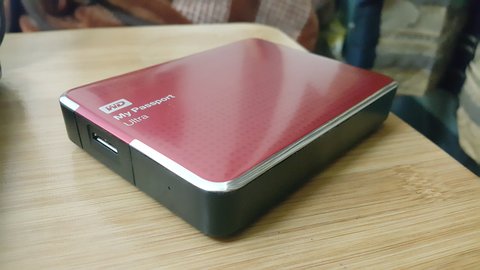
If your WD My Passport drive is not showing up in File Explorer, the WD SES Device USB driver is almost always the missing piece – it is a small driver that lets Windows talk to the drive’s security and password features, and without it the drive can fail to mount even though it shows up in Device Manager.
The My Passport line is Western Digital’s most popular portable hard drive series, and most of the time it is genuinely plug-and-play. But enough people run into “drive not detected,” “USB device not recognized,” or a My Passport stuck showing as unallocated space that it is worth a dedicated troubleshooting guide. This post covers downloading the right driver, installing WD’s own software, and working through the most common detection failures.
| Detail | Value |
|---|---|
| Applies To | WD My Passport, My Passport Ultra, My Passport for Mac (Windows use) |
| Publisher | Western Digital |
| Driver/Software | WD SES Device USB Driver, WD Discovery, WD Security, WD Backup |
| Download Source | support.wdc.com – search your exact model number |
| File Size | WD Discovery installer is roughly 150-250 MB depending on version |
| Requirements | Windows 10 or Windows 11, USB 3.0 port recommended for full speed |
Download the WD SES Driver and WD Discovery
Go to the Western Digital Support site, type your exact model number (printed on the underside of the drive), and download WD Discovery. It bundles the SES driver along with WD Security and WD Backup. Avoid downloading drivers from third-party sites – WD’s own portal is the only source that matches your specific drive revision.
Install with the drive already connected
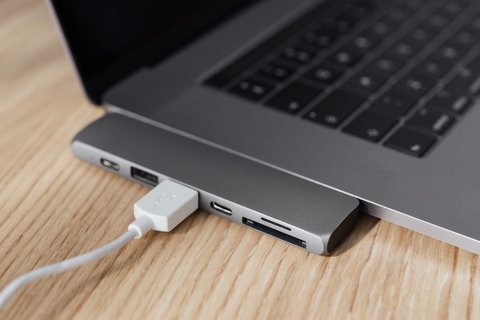
Plug the My Passport in first, then run the installer. This lets the setup wizard detect your exact drive model and install the matching version of the SES device driver instead of a generic one.
Check Disk Management if the drive still does not appear
Right-click the Start button, choose Disk Management, and look for the drive listed by its capacity even if it has no letter assigned. If you see it there but not in File Explorer, right-click it and choose “Change Drive Letter and Paths” to assign one manually.
Update the driver manually through Device Manager
Open Device Manager, expand “Disk drives” and “Universal Serial Bus controllers,” find the WD entry, right-click, and select Update Driver > “Search automatically for drivers.” If Windows reports the driver is up to date but the drive still misbehaves, uninstall the device and unplug/replug it so Windows reinstalls fresh.
I have run into a My Passport that showed up fine on one laptop but sat invisible on another running an older Windows 10 build – the fix both times was the same: uninstall the existing WD entries in Device Manager completely, restart, then reconnect the drive so Windows re-enumerates it from scratch instead of reusing a corrupted driver cache.
Common Error Messages and What They Mean
- USB device not recognized – usually a cable or port issue, not the drive itself. Try a different USB-A or USB-C cable and a rear motherboard port instead of a front panel header.
- RAW file system / “You need to format the disk” – the drive’s file system table is corrupted. Do not format immediately; run
chkdsk /ffrom an elevated Command Prompt first, or use recovery software if the data matters. - Drive detected but extremely slow – check that it is plugged into a USB 3.0 (blue) port, not USB 2.0. My Passport drives negotiate down automatically and USB 2.0 speeds can be a fraction of rated performance.
- WD Discovery cannot find the drive – close and reopen the app after the drive is already connected and shows in File Explorer; the app sometimes scans only at launch.
Per Melissa T., an office manager at a small accounting firm, “Our My Passport drives are how we hand off client files at the end of each week, so when one stopped mounting on a coworker’s PC I was relieved the fix was just reinstalling WD Discovery instead of losing the drive entirely.”
If Windows Still Will Not See the Drive
When none of the above works, isolate whether the problem is the drive, the cable, or the port:
- Test the same cable and drive on a completely different computer.
- Test a different known-working drive on your original computer and port.
- Listen for the drive spinning up – if you hear repeated clicking or spin-up/spin-down cycles, that points to a hardware failure rather than a driver problem, and you should stop using the drive to avoid further data loss.
Western Digital also publishes a dedicated drive-not-detected troubleshooting article that covers Mac-specific steps if you switch between operating systems with the same drive. For general USB troubleshooting on Windows, Microsoft’s USB connection guide is also useful.
Frequently Asked Questions
Do I really need to install WD Discovery, or does Windows handle it alone?
Windows can read and write to the drive with its built-in generic USB storage driver alone, but you will not get password protection, encryption management, or backup scheduling without WD Discovery and WD Security installed.
Why does my My Passport show a much smaller capacity than advertised?
Manufacturers calculate capacity in decimal (1TB = 1,000,000,000,000 bytes) while Windows reports it in binary (1TB shown as roughly 931 GB). This is normal and not a sign the drive is faulty or missing storage.
Can I use my My Passport on both Windows and Mac?
Yes, but the drive ships formatted for one or the other. Windows-formatted (NTFS) drives are read-only on Mac by default, and Mac-formatted (HFS+/APFS) drives are not natively readable on Windows without third-party software.
Is it safe to just unplug the drive when I am done?
No – always use “Safely Remove Hardware” first. Yanking the drive while Windows is still caching writes is one of the most common causes of the RAW file system error mentioned above.
Conclusion
Most WD My Passport driver issues on Windows come down to a stale or missing SES device driver, which reinstalling WD Discovery with the drive already connected almost always resolves. If Disk Management shows the drive but File Explorer does not, assigning a drive letter manually usually finishes the job. Save any hardware-failure symptoms – clicking, repeated disconnects, or extreme heat – as your signal to back up immediately and stop relying on that drive.
Ryan T. is a PC hardware enthusiast with over 15 years of experience fixing drivers and troubleshooting devices for everyday users. He writes for softwaredriverdownload.com, where the goal is always practical, tested fixes rather than generic advice.