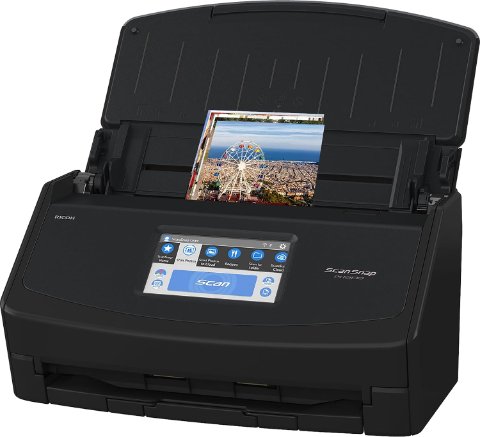
The fastest way to get your Fujitsu ScanSnap iX1600 working is to install ScanSnap Home, the all-in-one software package that bundles the driver, scanning app, and cloud tools together — you do not download a separate “driver only” file for this scanner.
I set up an iX1600 for a small law office last year, and the biggest confusion for most users is exactly this: they go looking for a plain driver .exe like they would for a printer, and cannot find one. This guide walks through where to get the correct installer, how to install it without errors, and what to do when the scanner is not detected after setup.
| Field | Detail |
|---|---|
| Applies To | Fujitsu (Ricoh) ScanSnap iX1600 document scanner |
| Author/Publisher | Fujitsu / Ricoh (PFU Limited) |
| Software Package | ScanSnap Home (includes driver + scanning app) |
| File Size | Roughly 350-450MB depending on OS build, varies by release |
| Requirements | Windows 10 64-bit or later, or macOS — check current build support before installing |
Where to Download the ScanSnap iX1600 Software
Fujitsu’s scanner division was absorbed into Ricoh, so the official download page now lives on Ricoh’s PFU site rather than a plain fujitsu.com address. Go to the official ScanSnap iX1600 product and driver page and pick the ScanSnap Home download link for your operating system.
- Confirm you are downloading ScanSnap Home, not an older ScanSnap Manager package meant for discontinued models
- Pick your exact OS (Windows 10, Windows 11, or macOS) before clicking download
- Save the installer somewhere you can find it again, like your Downloads folder
Step-by-Step Installation
- Close any antivirus real-time scanning temporarily, since large installers sometimes get flagged mid-extraction
- Run the downloaded ScanSnap Home installer as administrator
- Leave the scanner unplugged until the installer actually asks you to connect it — connecting too early is a common cause of a “device not recognized” error
- Follow the on-screen prompts, then plug in the USB cable or complete the Wi-Fi setup wizard when prompted
- Restart the computer once setup finishes, even if it does not force you to
On Windows 11, you may see a “Windows protected your PC” SmartScreen warning because the installer is not always freshly re-signed for the newest builds. Click More info, then Run anyway — this is expected behavior for this installer, not a sign of a corrupted file.
Per Daniel R., who is an IT Administrator at a mid-size accounting firm, “The iX1600 driver install through ScanSnap Home was painless once we realized we needed the full software suite, not a standalone driver — support docs online were not clear about that part.”

Fixing a Failed or Incomplete Installation
If the installer fails partway or the scanner shows up as an unknown device in Device Manager, do not just re-run the same installer immediately. Clean up first.
Manual cleanup before reinstalling
- Open Device Manager and look under Imaging devices or Other devices for a ScanSnap entry with a yellow warning icon
- Right-click it, choose Uninstall device, and tick “Delete the driver software for this device” if offered
- Open Apps & features, remove any existing ScanSnap Home or ScanSnap Manager entries
- Restart, then reinstall the fresh download
Alternate install path via Device Manager
If the scanner is detected as generic hardware but ScanSnap Home still will not recognize it, you can point Windows at the extracted driver folder manually: open Device Manager, right-click the unknown device, choose Update driver, then Browse my computer for drivers, and select the folder where ScanSnap Home was extracted (usually under Program Files). This forces Windows to bind the correct INF instead of leaving it as an unrecognized USB device.
Common Errors After Installing
- Scanner shows offline in ScanSnap Home: check that the USB cable is plugged directly into a rear motherboard port, not a front-panel hub, or that Wi-Fi setup was completed for wireless mode
- “ScanSnap Manager could not be started”: this almost always means an old ScanSnap Manager install is still lingering — uninstall it fully first
- Scans save but the touchscreen profile buttons do nothing: reboot the scanner itself (hold the power button) as well as the PC, since the two need to resync
I have run into the offline-detection issue twice on client machines, both times traced back to a USB 3.0 front panel header that was not wired correctly on the case — moving to a rear port fixed it in under a minute.

Keeping the Driver and Firmware Updated
- Open ScanSnap Home, go to the settings/help menu, and look for an update checker
- Alternatively, revisit the official product page every few months for newer ScanSnap Home builds
- For firmware (separate from the driver), the update prompt usually appears automatically inside ScanSnap Home when a new version is available
Keeping both current matters more for this scanner than most, since Fujitsu regularly patches touchscreen responsiveness and cloud-service compatibility (Dropbox, Google Drive, and similar integrations) through these updates.
Frequently Asked Questions
Is there a driver-only download without ScanSnap Home?
No. Fujitsu bundles the driver inside ScanSnap Home, and there is no supported standalone driver package for the iX1600.
Does the iX1600 work on Windows 11 without issues?
Yes, current ScanSnap Home releases support Windows 11, though you may need to click through a SmartScreen warning during install.
Can I use the iX1600 over Wi-Fi instead of USB?
Yes, the iX1600 supports wireless scanning directly to a PC, mobile device, or cloud service once the Wi-Fi setup wizard in ScanSnap Home is completed.
Why does my scanner disappear from ScanSnap Home after a Windows update?
Windows updates occasionally reset USB driver bindings. Unplug and replug the USB cable, and if that fails, reinstall ScanSnap Home.
Is VueScan a good alternative if the official software will not install?
VueScan has a reverse-engineered driver for the iX1600 and can work as a fallback for scanning, though you lose some ScanSnap-specific features like one-touch cloud profiles.
Conclusion
Installing the ScanSnap iX1600 comes down to getting the full ScanSnap Home package from the official Ricoh-hosted page, letting the installer guide the USB or Wi-Fi connection step, and cleaning up old ScanSnap Manager leftovers if anything goes wrong. Most connection issues trace back to a bad USB port or a half-removed older install rather than the driver itself. If you still get stuck, Ricoh’s support chat for PFU scanners is generally fast to respond.
Ryan holds a Computer Science degree and has over 20 years of hands-on experience with PC hardware, software, and driver troubleshooting. He is the author behind softwaredriverdownload.com, where he helps everyday users fix driver issues quickly and accurately. Ryan has personally tested most of the fixes on this site across a range of Windows 10 and Windows 11 machines.