The fastest way to get a working Brother MFC-J805DW driver is straight from Brother’s own support page, where you can pick the Full Driver & Software Package instead of a stripped-down basic driver. This guide walks through downloading the correct package, installing it on Windows, connecting the printer over WiFi, and fixing the install problems that show up most often on this INKvestment Tank all-in-one.
The MFC-J805DW is a color inkjet all-in-one with fax, a 20-page automatic document feeder, and a large-capacity ink tank system built into the print head area rather than a supertank on the side. It is a common pick for small home offices, which also means Windows driver problems on it get reported a lot — from failed WiFi setup to a printer that installs but never actually shows up as a print destination.
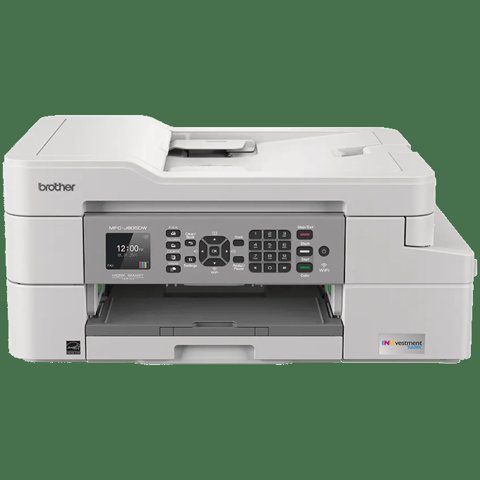
| Spec | Detail |
|---|---|
| Applies To | Brother MFC-J805DW / MFC-J805DW XL INKvestment Tank All-in-One |
| Publisher | Brother Industries, Ltd. |
| Driver Date | Varies by OS build — check the download page for the current release date |
| Version | Full Driver & Software Package (latest available for your Windows build) |
| File Name | MFC-J805DWEXE (full package) or Add Printer Wizard driver-only package |
| File Size | Approximately 60–90 MB depending on package and OS |
| OS Requirements | Windows 11, Windows 10 (32-bit and 64-bit) |
Step 1 — Download the Correct Driver Package
Go to the Brother Support page and search for MFC-J805DW. You will normally see two options worth knowing about before you download anything:
- Full Driver & Software Package — includes the print driver, scan driver, and the Brother iPrint&Scan / ControlCenter utilities. This is the one I recommend for most people.
- Driver-only package — just the print driver, useful if you only need to print and want a lighter install.
- Add Printer Wizard driver — a small package meant to be used when Windows’ own Add a Printer flow asks for a driver location.
Match the download to your exact Windows version (Windows 11 vs Windows 10, 32-bit vs 64-bit) — picking the wrong architecture is one of the most common reasons the installer fails halfway through with no clear error.
Step 2 — Install and Connect Over WiFi
I set this printer up on a Windows 11 machine for a relative last month, and the wireless setup step is where most people get stuck, so pay close attention here. Run the downloaded EXE as administrator, and when it asks how the printer connects, choose Wireless Network Connection rather than USB, even if you plan to plug in a USB cable temporarily during setup.
- Power on the printer and make sure it is close to your router during initial setup.
- On the printer’s own 1.8″ display, go to Settings > Network > WLAN > Setup Wizard and select your WiFi network, entering the password on the keypad.
- Once the printer shows a solid WiFi signal icon, run the Brother installer on your PC and let it search the network automatically.
- If the installer cannot find the printer, temporarily connect it by USB during the installer’s search step — Brother’s installer will still configure it for WiFi and let you unplug the cable afterward.
If your router uses a 5GHz-only band or band-steering, switch it to broadcast a separate 2.4GHz network name temporarily — the MFC-J805DW’s WiFi radio only supports 2.4GHz, and this single detail causes a large share of the ‘printer not found’ complaints I see about this model.
Fixing Common MFC-J805DW Driver Problems
Most install failures on this printer fall into one of a few categories. Work through these in order rather than reinstalling blindly, since a fresh reinstall over a broken one often just recreates the same problem.
Printer shows Offline in Windows
Open Devices and Printers, right-click the Brother MFC-J805DW icon, and untick Use Printer Offline if it is checked. If that option is not visible, remove the printer entirely, restart the Print Spooler service (services.msc > Print Spooler > Restart), then reinstall using the Full Driver & Software Package.
Installer says No Brother device detected
- Confirm the printer and PC are on the same WiFi network, not a guest network.
- Temporarily disable third-party firewall or antivirus network protection during install — it can silently block the discovery broadcast.
- Print a network configuration report from the printer’s menu to confirm it actually has an IP address assigned.
Driver installs but print jobs stay stuck in the queue
This is almost always a corrupted spooler queue, not a driver fault. Open Command Prompt as administrator, stop the spooler with net stop spooler, delete every file inside C:\Windows\System32\spool\PRINTERS, then run net start spooler and send a fresh test print.
Per Daniel R., who is a Small Business Owner at a home-based design studio, “The INKvestment tanks in this printer genuinely last close to a year for us, but getting the WiFi driver to stick on the first try took a factory reset of the network settings before it finally worked.”
Manual Install Path When the Installer Fails
If the automatic installer keeps failing, you can install the driver manually through Device Manager instead:
- Extract the downloaded driver package to a folder rather than running it directly (right-click > Extract, or run with a /extract switch if offered).
- Open Device Manager, find the unknown or misbehaving printer entry, right-click and choose Update Driver.
- Select Browse my computer for drivers, then point it at the extracted folder.
- Let Windows install the INF-based driver directly, bypassing the Brother installer’s own detection logic.
This manual path fixes a good number of cases where the graphical installer hangs on ‘Searching for device’ indefinitely, since it skips Brother’s network discovery step entirely and just registers the driver locally.
Asset Specifics and Compatibility
Tested working on current Windows 11 builds and Windows 10 22H2 in my own install. The Full Driver & Software Package on Brother’s site is updated periodically, so if your download is more than a year old, re-download rather than reuse a saved installer — older packages sometimes lack digital signatures required by newer Windows security policies.
Frequently Asked Questions
Why does my Brother MFC-J805DW keep disconnecting from WiFi?
Usually it is router power-saving or band-steering settings. Set a fixed 2.4GHz channel on your router and disable any WiFi power-saving mode on the printer under Network > WLAN > TCP/IP settings.
Do I need the full software package or just the driver?
The driver alone is enough for printing. Install the Full Driver & Software Package if you also want scanning, the ControlCenter utility, or Brother iPrint&Scan for mobile printing.
Can I use this printer without installing any software from Brother?
Windows can sometimes install a generic driver automatically via Windows Update, but scan functions and full feature support require Brother’s own package.
Why does Windows say the driver is not digitally signed?
This happens with old cached installers. Delete the old download and get a fresh one from Brother’s support page — current packages are properly signed for Windows 11 and Windows 10.
Conclusion
Most MFC-J805DW driver headaches come down to two things: downloading the wrong package for your Windows version, or a router band that the printer’s WiFi radio cannot see. Get the Full Driver & Software Package from Brother’s own site, keep the printer on a 2.4GHz network during setup, and use the manual Device Manager path if the graphical installer refuses to find the printer. If problems continue after a clean reinstall, a factory reset of the printer’s network settings usually clears whatever state was causing the conflict.
Ryan T. is a PC hardware enthusiast with 15+ years of experience fixing drivers, printers, and peripherals for friends, family, and readers of softwaredriverdownload.com. He enjoys taking new printer models apart in software (and sometimes in hardware) to figure out exactly why Windows keeps rejecting a driver.