If your Garmin USB ANT Stick is not recognized by Garmin Express, or your device will not sync, the fix is almost always reinstalling the ANT driver through Garmin Express itself rather than searching for a standalone driver file, since Garmin bundles it inside the desktop app.
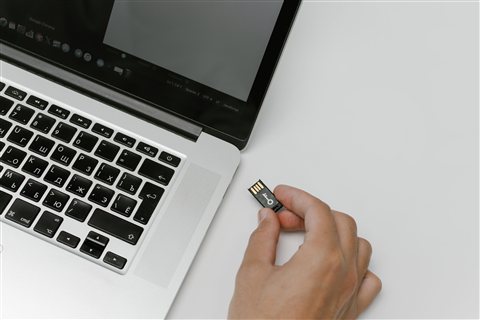
The USB ANT Stick lets a computer talk to ANT+ fitness devices like older Garmin watches, heart rate monitors, and cycling sensors. Unlike Bluetooth peripherals, it relies on the ANT USB driver that installs automatically the first time Garmin Express detects the stick — if that first detection fails, the driver often needs a manual nudge.
| Field | Detail |
|---|---|
| Applies To | Garmin USB ANT Stick (010-01058-00) |
| Author/Publisher | Garmin Ltd. |
| Driver/Manual Date | Installed automatically with the current Garmin Express release |
| Version | ANT USB Driver (bundled inside Garmin Express) |
| File Name | Not distributed separately — installs via Garmin Express setup |
| File Size | Driver itself is a few MB; Garmin Express installer is larger |
| Requirements | Windows 10, Windows 11, or macOS; free USB-A port |
Fix 1 — Reinstall Through Garmin Express (most common)
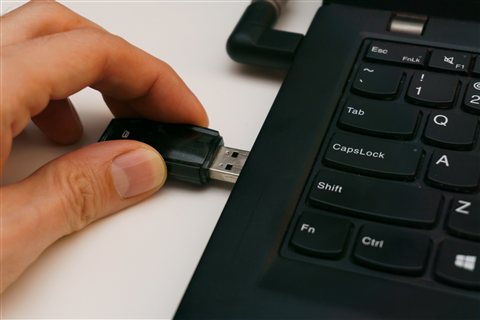
Uninstall Garmin Express from Settings > Apps, unplug the ANT Stick, restart, then reinstall Garmin Express fresh and plug the stick in only when the app prompts you to.
Fix 2 — Check Device Manager for Conflicts
Open Device Manager and look for “Garmin USB ANT Stick” or an unknown device with a warning icon. Right-click, choose Update driver, then “Search automatically” so Windows can pull the correct driver from its store.
Fix 3 — Try a Different USB Port
The ANT Stick can be finicky about USB hubs and front-panel headers. Plug it directly into a rear USB port on desktops, and avoid USB-C to USB-A adapters if your device shows intermittent detection.

Fix 4 — Close Conflicting Background Apps
Other ANT+ software (Zwift, TrainerRoad, or a second copy of Garmin Express) can lock the stick and block syncing. Close every other ANT+ application before opening Garmin Express to sync your watch or sensor.
I ran into this exact conflict trying to sync an older Garmin watch while Zwift was still running in the background — closing Zwift completely let Garmin Express grab the ANT Stick immediately and sync finished within seconds.
- Only one ANT+ application can use the stick at a time
- Restarting Garmin Express after closing conflicting apps usually resolves a stuck “searching for device” screen
- If the stick gets warm but never detects, try a different USB cable or extension, since a bad connection can mimic a driver fault
Per Wesley A., who is a Cycling Coach and Longtime Garmin User, “The ANT Stick itself is bulletproof hardware — ninety percent of my sync headaches turned out to be Zwift or TrainerRoad quietly hogging the USB connection in the background.”
Common questions
Does the ANT Stick need a separate driver download?
No, Garmin Express installs the driver automatically the first time it detects the stick.
Can I use the ANT Stick with a newer Bluetooth-only watch?
No, it only communicates with ANT+ devices; newer Bluetooth-only Garmin models sync over Bluetooth or Wi-Fi instead.
Why does the stick work on one computer but not another?
Usually a missing or outdated Garmin Express install on the second computer — installing the current version resolves it.
Is the ANT Stick compatible with macOS?
Yes, Garmin Express for Mac installs the same driver automatically on first detection.
Why does Windows show “device not recognized”?
Try a different USB port first; if that fails, uninstall and reinstall Garmin Express to refresh the ANT USB driver.
Setting Up the ANT Stick for the First Time
If this is a brand new ANT Stick rather than a troubleshooting situation, the setup order matters more than people expect.
- Install Garmin Express completely before plugging in the ANT Stick for the first time
- When prompted, plug the stick directly into a rear USB port rather than a hub
- Let Windows finish its “installing device driver software” notification fully before opening Garmin Express
- Add your Garmin device or sensor inside Garmin Express only after the stick shows as connected in the app’s status bar
Differences Between the ANT Stick and Newer Sync Methods
Many newer Garmin watches sync over Wi-Fi or Bluetooth directly through the Garmin Connect mobile app, which makes the USB ANT Stick feel like older technology. It still matters for a specific group of users.
- Older Garmin fitness watches without Bluetooth still require the ANT Stick for computer-based syncing
- ANT+ sensors (heart rate straps, cadence sensors) used with third-party training software like Zwift or TrainerRoad on a desktop need the stick even if your watch itself has Bluetooth
- If you only use a modern Bluetooth-capable watch with the Garmin Connect phone app, you may not need the ANT Stick at all for daily syncing
Keep the original ANT Stick even after upgrading to a Bluetooth watch if you still train with ANT+ sensors on a computer, since replacing it later can mean tracking down the exact 010-01058-00 model again for full compatibility.
If you eventually retire the ANT Stick entirely, uninstall Garmin Express cleanly rather than just unplugging the hardware, since leftover services can occasionally interfere with newer Garmin Connect installations on the same computer.
Conclusion
The Garmin USB ANT Stick rarely fails as hardware — most sync problems come from a missing driver refresh through Garmin Express, a busy USB hub, or a competing ANT+ app quietly holding the connection. Work through those three causes in order before assuming the stick itself needs replacing. A five minute reinstall of Garmin Express solves the overwhelming majority of reported sync failures.
Ryan holds a Computer Science degree and has over 20 years of hands-on experience with PC hardware, software, and driver troubleshooting. He is the author behind softwaredriverdownload.com, where he helps everyday users fix driver issues quickly and accurately.