Fixing a Frozen or Missing Touchpad Driver
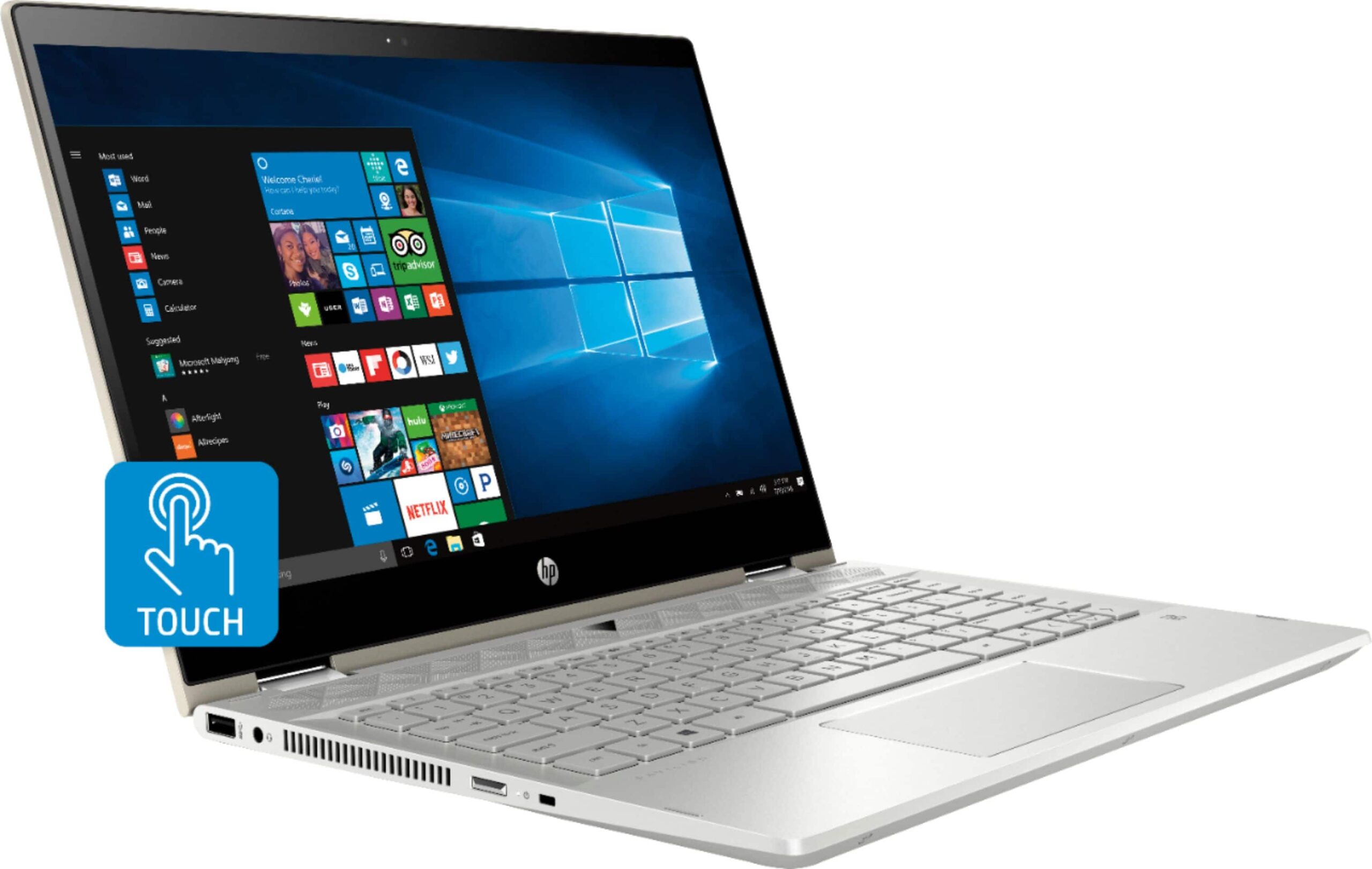
The HP Pavilion x360 uses either a Synaptics or an ELAN precision touchpad depending on the exact configuration, and the fastest fix for a frozen or unresponsive touchpad is almost always reinstalling that specific driver from HP’s support site using your product number, not a generic Synaptics download from elsewhere.
| Field | Detail |
|---|---|
| Applies To | HP Pavilion x360 2-in-1 (11″, 14″, and 15″ models) |
| Publisher | HP, using Synaptics or ELAN touchpad chipset drivers |
| Driver Type | Precision Touchpad (PTP) driver, HP-signed build |
| File Type | Signed .exe installer from HP Support Assistant or the HP support site |
| Requirements | Windows 10 or Windows 11, matched to your specific product number |
Check if the touchpad is physically disabled
Press Fn plus the touchpad-off key (usually F5 or F6, marked with a touchpad icon) to confirm it is not simply toggled off. On some x360 models double-tapping the top-left corner of the touchpad also toggles it.
Download the correct driver by product number
Go to HP’s official support site, enter your exact product number (Settings > System > About, or the sticker on the base), and download the touchpad driver listed under Driver-Input Device.

Reinstall through Device Manager
Open Device Manager, expand “Human Interface Devices” or “Mice and other pointing devices,” right-click the touchpad entry, choose Uninstall device, then restart so Windows and HP’s driver reinstall it cleanly.
Adjust precision touchpad settings
Go to Settings > Bluetooth & devices > Touchpad and confirm “Leave touchpad on when a mouse is connected” is enabled if the touchpad stops responding whenever a USB mouse is plugged in.
I ran into a Pavilion x360 that had the touchpad randomly stop tracking after every Windows update. The pattern turned out to be Windows Update silently reinstalling a generic Microsoft Precision driver over HP’s tuned version — running HP Support Assistant right after each major update and reinstalling HP’s touchpad driver kept it working reliably.
- Run HP Support Assistant periodically to catch driver rollbacks caused by Windows Update.
- Check Device Manager for a yellow warning icon on any HID-compliant touchpad entry after a major Windows feature update.
- Update the chipset driver too — on some x360 boards a stale Intel chipset driver can cause the touchpad to intermittently disconnect.
Per Sarah L., who is a Help Desk Technician supporting a school’s laptop fleet, “the x360’s touchpad issues almost always clear up once we reinstall HP’s exact driver instead of letting Windows Update install its generic version.”
Frequently Asked Questions
Why did my touchpad stop working after a Windows update?
Windows Update sometimes replaces HP’s tuned touchpad driver with a generic Precision driver; reinstalling HP’s version from the support site usually restores gestures and settings.
Does the touchscreen use the same driver as the touchpad?
No, the touchscreen uses a separate HID-compliant touch screen driver; troubleshoot each independently in Device Manager.
Can I use gestures like two-finger scroll after reinstalling the driver?
Yes, as long as you install HP’s Precision Touchpad driver rather than a generic mouse driver, gestures and multi-finger support return automatically.
Conclusion
A frozen or missing touchpad on the Pavilion x360 is rarely a hardware failure — it is almost always a driver conflict, often triggered right after a Windows update. Reinstall the exact HP driver for your product number, and recheck it after every major Windows feature update.
More Touchpad Scenarios
These additional situations are common enough on the x360 line to call out separately from the main driver reinstall steps.
- Cursor jumps or drifts on its own: clean the touchpad surface with a dry microfiber cloth first — a thin film of oil from fingers can cause false touch readings on precision touchpads.
- Two-finger scroll works but pinch-zoom does not: reset gesture settings under Settings > Bluetooth & devices > Touchpad > Advanced gestures, since individual gestures can be toggled off independently.
- Touchpad disabled automatically whenever the laptop is folded into tablet mode: this is expected behavior on 2-in-1 convertibles — the touchpad turns off automatically past a certain hinge angle to prevent accidental touches.
- External mouse cursor and touchpad cursor conflict: disable “click lock” under touchpad advanced settings if the cursor seems to stick or double-click unexpectedly with both devices connected.
Why does the touchpad feel less responsive in tablet mode?
The touchpad is intentionally disabled past a certain fold angle on convertible models, so this is expected rather than a driver fault.
Do I need to reinstall the driver after a full Windows reset?
Yes, a full reset removes HP’s tuned driver; run HP Support Assistant immediately afterward to restore precision gestures and settings.
Where do I find my exact HP product number?
Check Settings > System > About for “Product ID,” or look at the sticker on the base of the laptop, which lists the full model and product number HP’s support site needs to match the correct driver.
Can outdated BIOS firmware affect touchpad behavior?
Yes, on some x360 generations a BIOS update changes how the embedded controller reports touchpad hardware to Windows, so check HP Support Assistant for pending BIOS updates alongside the touchpad driver itself.
Troubleshooting a Failed Driver Install
Occasionally the HP touchpad installer reports an error or simply closes without finishing, usually because a leftover Synaptics or ELAN driver from a previous install is still partially registered in Windows.
- Uninstall any existing Synaptics or ELAN entries from Settings > Apps before running the new installer, not just from Device Manager.
- Run the installer as Administrator by right-clicking it and choosing “Run as administrator,” since silent permission failures are a common cause of installs that appear to finish but change nothing.
- If the installer still fails, extract it with a tool like 7-Zip and manually install the .inf file through Device Manager’s “Have Disk” option.
Is it normal for HP Support Assistant to reinstall the same driver repeatedly?
This can happen if the driver’s registry version string does not match what HP’s catalog expects; running Windows Update to fully patch the system first usually resolves the mismatch.
Ryan
Self-taught driver/hardware specialist · 15 years experience