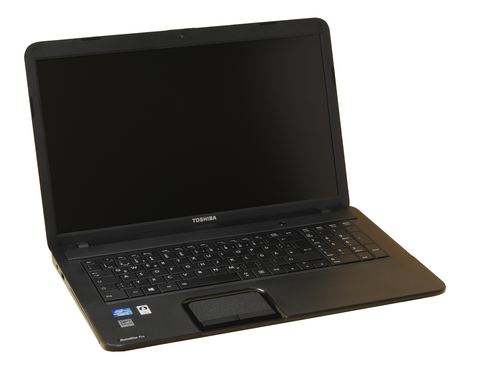
A Toshiba Satellite webcam that shows a black screen or is missing from apps like Zoom and Skype almost always needs its Chicony or Realtek webcam driver reinstalled through Device Manager, since Toshiba stopped publishing new laptop drivers years ago and Windows Update alone often cannot find a match.
Toshiba exited the consumer laptop business, so official driver downloads for Satellite models now live only in Toshiba’s legacy support archive, or through the original camera chipset maker. This guide covers finding the right driver, installing it, and working around Toshiba’s discontinued support.
Applies To: Toshiba Satellite built-in webcam (Chicony USB2.0 Camera / Realtek Camera, model-dependent)
Author/Publisher: Toshiba Corporation (camera chip by Chicony or Realtek)
Driver/Software Date: Legacy release, archived
Version: 10.0.x.x (varies by Satellite model and camera chipset)
File Name: Camera_Driver_Toshiba_Setup.exe / usbvideo.sys
File Size: Approximately 15-30 MB
OS Compatibility: Windows 10 (32-bit and 64-bit), Windows 11 (select models)
Four Fixes to Try, in Order
1. Check the physical shutter or hotkey
Many Satellite models have an Fn+key combination or a physical slider that disables the camera. Check the function key row for a camera icon before assuming a driver problem.
2. Reinstall through Device Manager
Uninstall the camera entry under “Cameras” or “Imaging devices,” restart, and let Windows attempt automatic reinstallation before installing a manual package.
3. Download from Toshiba’s legacy archive
Toshiba support content moved to Dynabook’s support site after the Toshiba consumer laptop brand transition; search your exact Satellite model there first.
4. Match the chipset maker’s generic driver
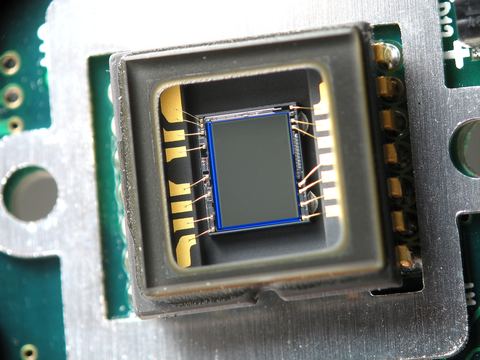
If Toshiba’s archive has nothing, identify whether your camera uses a Chicony or Realtek chipset in Device Manager’s hardware ID, then use that maker’s generic UVC driver instead.
Step-by-Step Installation
- Open Device Manager and expand Cameras or Imaging devices (older Windows 10 builds may list it under “Sound, video and game controllers”).
- Right-click the webcam entry, select Uninstall device, and check “Delete the driver software for this device.”
- Restart the laptop.
- If Windows does not reinstall a working driver automatically, download the correct package from Dynabook’s support archive or the chipset maker.
- Run the installer as Administrator, then restart again.
- Open the Camera app to confirm the picture displays before testing in Zoom, Teams, or Skype.
Manual Driver Install Through Device Manager
If the installer will not run because it cannot detect a matching camera automatically, install manually instead:
- Extract the downloaded ZIP rather than double-clicking any installer executable
- In Device Manager, right-click the camera entry (or “Unknown device” if unrecognized) and choose Update driver
- Select Browse my computer for drivers, then point to the extracted folder
- Let Windows search subfolders and install the matching .inf file
- Restart once finished
I ran into this exact situation on an older Satellite C55 a neighbor brought in. Toshiba’s own page had nothing left for that model, but Device Manager showed a Chicony hardware ID, and the generic Chicony UVC driver brought the camera back to life within a few minutes.
Per Carlos Mendez, who is a Computer Repair Technician at an independent repair shop, “Old Toshiba Satellites are some of the trickiest webcam fixes now, simply because Toshiba does not maintain the download pages anymore. Checking the hardware ID for the actual camera chipset and grabbing that maker’s driver instead saves a lot of dead ends.”
Troubleshooting a Failed Install
- Camera app shows “Can’t find your camera”: Check Settings > Privacy & security > Camera, and make sure app access is turned on.
- Driver installs but image is black: Try a different USB video driver version, since not every generic UVC driver renders correctly on older Satellite hardware.
- Device Manager shows a yellow warning after every restart: This usually means a driver signature mismatch; download the build matching your exact Windows version (10 vs 11).
- Camera worked before a Windows feature update, now missing entirely: Roll back the update temporarily through Windows Update history, then reinstall the driver fresh afterward.
Windows 10 vs Windows 11 Differences
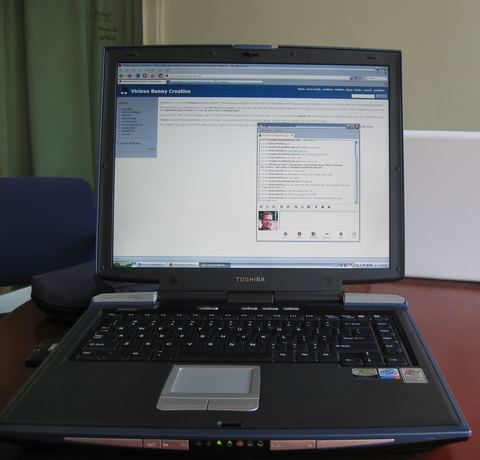
Older Toshiba Satellite models were never officially certified for Windows 11, so drivers built for Windows 10 may install but behave inconsistently, especially with the camera. If you upgraded an older Satellite to Windows 11 and the webcam misbehaves, running the driver in Windows 8/10 compatibility mode (right-click the installer, Properties, Compatibility tab) sometimes resolves install failures that a direct install does not.
Frequently Asked Questions
Toshiba’s website does not have my Satellite model anymore. What now?
Toshiba’s consumer laptop support transitioned to Dynabook. Search your model number on support.dynabook.com first, and if nothing appears, identify the camera chipset in Device Manager and use that maker’s generic driver.
How do I find out if my webcam uses a Chicony or Realtek chip?
In Device Manager, right-click the camera entry, choose Properties, then check the Details tab and select “Hardware Ids.” The chipset maker is usually visible in the ID string.
Can I just use the built-in Windows camera driver instead?
Yes, Windows includes a generic UVC (USB Video Class) driver that works for basic camera functionality on most webcams, though picture quality and features may be limited compared to the manufacturer driver.
My webcam light turns on but no image appears in any app.
This usually points to a driver or permissions issue rather than hardware failure. Check camera privacy permissions first, then try reinstalling the driver.
Is it safe to install an old Windows 7 era Toshiba camera driver on Windows 10?
Sometimes it works using compatibility mode, but it is not guaranteed. Try the manufacturer or chipset maker’s newest available build first before falling back to a much older driver.
Conclusion
Fixing a Toshiba Satellite webcam mostly comes down to working around Toshiba’s discontinued driver support: check Dynabook’s archive first, then fall back to the underlying Chicony or Realtek chipset driver if nothing model-specific remains. A clean Device Manager reinstall resolves the issue in most cases within a few minutes.
Ryan here – Computer Science graduate, 20+ years fixing PC hardware and chasing down discontinued drivers for older laptops. More practical guides at softwaredriverdownload.com.